


Page 505 - Excel 2007 Bible
P. 505
30_044039 ch23.qxp  11/21/06  11:13 AM  Page 462
                                  Part IV
                                              Using Advanced Excel Features
                                             below the Ribbon uses additional vertical space on your screen. In other words, you’ll be able to see one
                                             less row of your worksheet if you move the QAT from its default location.
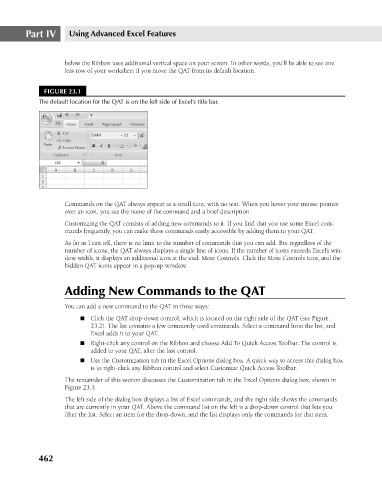
                                       FIGURE 23.1
                                      The default location for the QAT is on the left side of Excel’s title bar.
                                             Commands on the QAT always appear as a small icon, with no text. When you hover your mouse pointer
                                             over an icon, you see the name of the command and a brief description.
                                             Customizing the QAT consists of adding new commands to it. If you find that you use some Excel com-
                                             mands frequently, you can make these commands easily accessible by adding them to your QAT.
                                             As far as I can tell, there is no limit to the number of commands that you can add. But regardless of the
                                             number of icons, the QAT always displays a single line of icons. If the number of icons exceeds Excel’s win-
                                             dow width, it displays an additional icon at the end: More Controls. Click the More Controls icon, and the
                                             hidden QAT icons appear in a pop-up window.
                                             Adding New Commands to the QAT
                                             You can add a new command to the QAT in three ways:
                                                 n Click the QAT drop-down control, which is located on the right side of the QAT (see Figure
                                                    23.2). The list contains a few commonly used commands. Select a command from the list, and
                                                    Excel adds it to your QAT.
                                                 n Right-click any control on the Ribbon and choose Add To Quick Access Toolbar. The control is
                                                    added to your QAT, after the last control.
                                                 n Use the Customization tab in the Excel Options dialog box. A quick way to access this dialog box
                                                    is to right-click any Ribbon control and select Customize Quick Access Toolbar.
                                             The remainder of this section discusses the Customization tab in the Excel Options dialog box, shown in
                                             Figure 23.3.
                                             The left side of the dialog box displays a list of Excel commands, and the right side shows the commands
                                             that are currently in your QAT. Above the command list on the left is a drop-down control that lets you
                                             filter the list. Select an item for the drop-down, and the list displays only the commands for that item.


                                      462

