


Page 510 - Excel 2007 Bible
P. 510
31_044039 ch24.qxp  11/21/06  11:13 AM  Page 467
                                             Using shortcut keys to format numbers
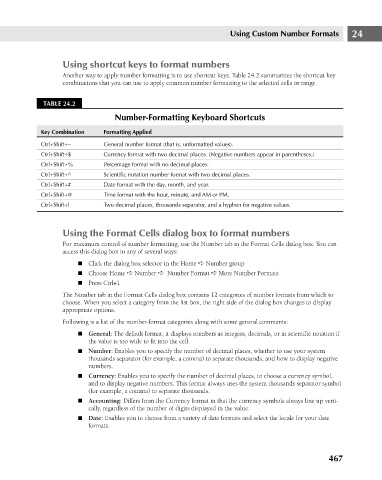
                                             Another way to apply number formatting is to use shortcut keys. Table 24.2 summarizes the shortcut key
                                             combinations that you can use to apply common number formatting to the selected cells or range.
                                       TABLE 24.2
                                                           Number-Formatting Keyboard Shortcuts
                                       Key Combination
                                       Ctrl+Shift+~
                                                        General number format (that is, unformatted values).
                                                        Currency format with two decimal places. (Negative numbers appear in parentheses.)
                                       Ctrl+Shift+$
                                       Ctrl+Shift+%
                                                        Percentage format with no decimal places.
                                       Ctrl+Shift+^
                                                        Scientific notation number format with two decimal places.
                                                        Date format with the day, month, and year.
                                       Ctrl+Shift+#
                                                        Time format with the hour, minute, and AM or PM.
                                       Ctrl+Shift+@
                                       Ctrl+Shift+!     Formatting Applied                 Using Custom Number Formats       24
                                                        Two decimal places, thousands separator, and a hyphen for negative values.
                                             Using the Format Cells dialog box to format numbers
                                             For maximum control of number formatting, use the Number tab in the Format Cells dialog box. You can
                                             access this dialog box in any of several ways:
                                                 n Click the dialog box selector in the Home ➪ Number group
                                                 n Choose Home ➪ Number ➪ Number Format ➪ More Number Formats
                                                 n Press Ctrl+1
                                             The Number tab in the Format Cells dialog box contains 12 categories of number formats from which to
                                             choose. When you select a category from the list box, the right side of the dialog box changes to display
                                             appropriate options.
                                             Following is a list of the number-format categories along with some general comments:
                                                 n General: The default format; it displays numbers as integers, decimals, or in scientific notation if
                                                    the value is too wide to fit into the cell.
                                                 n Number: Enables you to specify the number of decimal places, whether to use your system
                                                    thousands separator (for example, a comma) to separate thousands, and how to display negative
                                                    numbers.
                                                 n Currency: Enables you to specify the number of decimal places, to choose a currency symbol,
                                                    and to display negative numbers. This format always uses the system thousands separator symbol
                                                    (for example, a comma) to separate thousands.
                                                 n Accounting: Differs from the Currency format in that the currency symbols always line up verti-
                                                    cally, regardless of the number of digits displayed in the value.
                                                 n Date: Enables you to choose from a variety of date formats and select the locale for your date
                                                    formats.
                                                                                                                      467

