


Page 149 - Process simulation and control using Aspen
P. 149
VSI'KN I'll 'S  SIMl'LATION OF DISTOIATIOM MHHKl.S      137

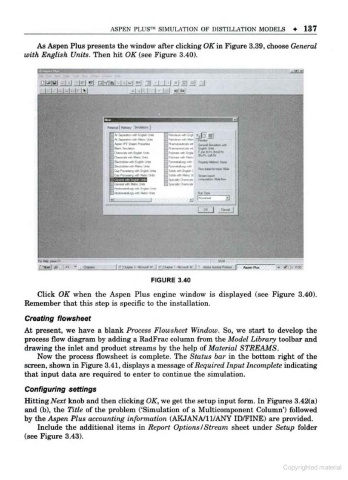
            As Aspen Plus presents the window after clicking OK in Figure 3.39, choose General
        with English Units. Then hit OK (see Figure 3.40).


                                            FIGURE 3.40
            Click OK when the Aspen Plus engine window is displayed (see Figure 3.40).
        Remember that this step is specific to the installation.

        Creating flowsheet
        At present, we have a blank Process Flowsheet Window. So, we start to develop the
        process flow diagram by adding a RadFrac column from the Model Library toolbar and
        drawing the inlet and product streams by the help of Material STREAMS.
            Now the process flowsheet is complete. The Status bar in the bottom right of the
        screen, shown in Figure 3.41, displays a message ofRequired Input Incomplete indicating
        that input data are required to enter to continue the simulation.
        Configuring settings

        Hitting Next knob and then clicking OK, we get the setup input form. In Figures 3.42(a)
                                          '
        and (b), the Title of the problem ( Simulation of a Multicomponent Column') followed
        by the Aspen Plus accounting information (AKJANA/ll/ANY ID/FINE) are provided.
            Include the additional items in Report Options/Stream sheet under Setup folder
        (see Figure 3.43).


                                                                                  C            aterial

