


Page 624 - 02. Subyek Computer Aided Design - Beginner’s Guide to SOLIDWORKS 2019- Level 1 by Alejandro Reyes
P. 624
Assembly and Design Table Drawings
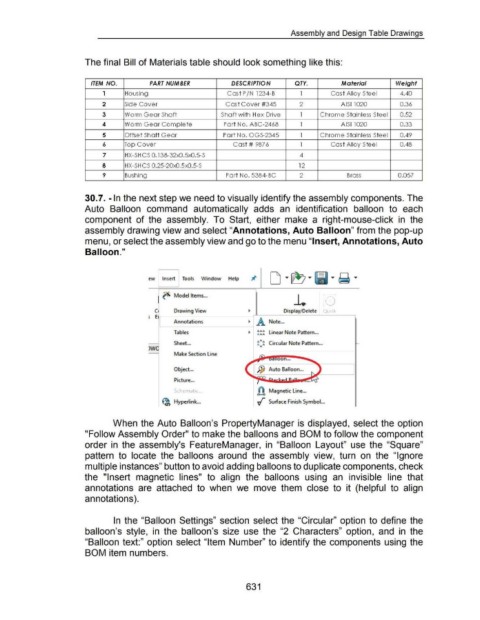
The final Bill of Materials table should look something like this:
ITEM NO. PART NUMBER DESCRIPTION QTY. Material Weight
1 Housing Cast P /N 1234-B 1 Cast Alloy Steel 4.40
2 Side Cover Cast Cover #345 2 AISI1020 0.36
3 Worm Gear Shaft Shaft with Hex Drive 1 Chrome Stainless Steel 0.52
4 Worm Gear Complete Part No. ABC-2468 1 AISI1020 0.33
5 Offset Shaft Gear Part No. OGS-2345 1 Chrome Stainless Steel 0.49
6 Top Cover Cast # 987 6 1 Cast Alloy Steel 0.48
7 HX-SH CS 0.138-32x0.5x0.5-S 4
8 HX-SH CS 0.25-20x0.5x0.5-S 12
9 Bushing Part No. 5384- BC 2 Brass 0.057
30.7. -In the next step we need to visually identify the assembly components. The
Auto Balloon command automatically adds an identification balloon to each
component of the assembly. To Start, either make a right-mouse-click in the
assembly drawing view and select "Annotations, Auto Balloon" from the pop-up
menu, or select the assembly view and go to the menu "Insert, Annotations, Auto
Balloon."
,. r
ew Insert Tools Window Help
I
••••
~ Model Items ...
c Drawing View ~ Display/Delete QUick
; E -
Annotations ~ A Note ...
------1
Tables ~ AAA L" N p
A AA mear ote attern ...
Sheet. .. !:~ Circular Note Pattern ...
w
Make Section Line
oon ...
Object ... Jf) Auto Balloon ...
Picture ...
~ch~rn;~tlr ... fA Magnetic Line ...
o--a
~ Hyperlink ... v"" Surface Finish Symbol...
When the Auto Balloon's PropertyManager is displayed, select the option
"Follow Assembly Order" to make the balloons and BOM to follow the component
order in the assembly's FeatureManager, in "Balloon Layout" use the "Square"
pattern to locate the balloons around the assembly view, turn on the "Ignore
multiple instances" button to avoid adding balloons to duplicate components, check
the "Insert magnetic lines" to align the balloons using an invisible line that
annotations are attached to when we move them close to it (helpful to align
annotations).
In the "Balloon Settings" section select the "Circular" option to define the
balloon's style, in the balloon's size use the "2 Characters" option, and in the
"Balloon text:" option select "Item Number" to identify the components using the
BOM item numbers.
631

