


Page 731 - 02. Subyek Computer Aided Design - Beginner’s Guide to SOLIDWORKS 2019- Level 1 by Alejandro Reyes
P. 731
Appendix
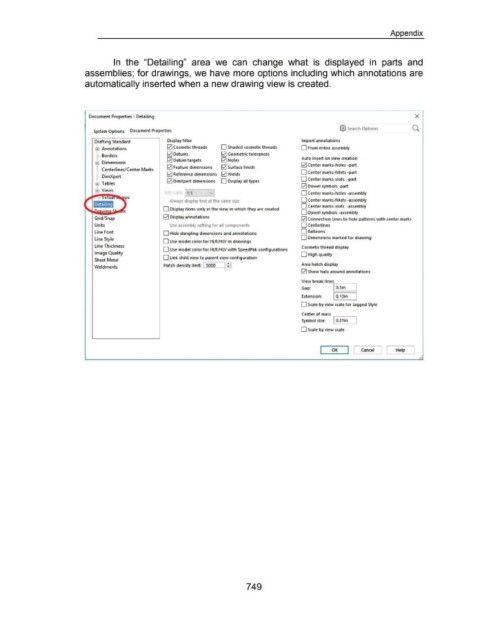
In the "Detailing" area we can change what is displayed in parts and
assemblies; for drawings, we have more options including which annotations are
automatically inserted when a new drawing view is created.
Document Properties - Detailing X
@ Search Options
System Options Document Properties
Drafting Standard Display filter Import annotations
Annotations 0 Cosmetic threads 0 Shaded cosmetic threads 0 From entire assembly
Borders 0 Datums 0 Geometric tolerances
0 Datum targets 0 Notes Auto insert on view creation
Dimensions 0 Center marks-holes -part
lv'l Feature dimensions 0 Surface finish
Centerlines/ Center Marks
lv'l Reference dimensions 0Welds 0 Center marks-fillets -part
DimXpert
0 DimXpert dimensions 0 Display all types 0 Center marks-slots -part
0 Dowel symbols -part
Text scale: 1 1 0 Center marks-holes -assembly
Always display text at the same size 0 Center marks-fillets -assembly
0 Center marks-slots -assembly
0 Display items only in the view in which they are created
0 Dowel symbols -assembly
Grid/ Snap 0 Display annotations 0 Connection lines to hole patterns with center marks
Units Use assembly setting for all components 0 Centerlines
Line Font 0 Hide dangling dimensions and annotations 0 Balloons
Line Style 0 Dimensions marked for drawing
0 Use model color for HLR/HLV in drawings
Line Thickness Cosmetic thread display
0 Use model color for HLR/HLV with SpeedPak configurations
Image Quality 0 High quality
0 link child view to parent view configuration
Sheet Metal
Hatch density limit: I 5000 11: '' Area hatch display
Weldments
0 Show halo around annotations
View break lines
Gap: rlo-.-5-in--~
Extension: I 0.13in
0 Scale by view scale for Jagged Style
Center of mass .------~
Symbol size: I 0.31in
0 Scale by view scale
..,
I [
OK Cancel Help
749

