


Page 303 - Excel Progamming Weekend Crash Course
P. 303
r540629 ch21.qxd  9/2/03  9:35 AM  Page 278


                278                                                          Sunday Morning

               Overlapping Controls and the Z-Order

               Most of the time, the controls on your user forms don’t overlap each other, so there’s no
               problem with one control hiding another. (Using a Frame control to group other controls is
               the one common exception to this rule.) For some forms, however, it may be desirable to
               overlap controls to achieve the layout you want. When controls overlap, how do you deter-
               mine which one is on top?
                  The layering of overlapping controls is determined by the z-order. The control that is on
               top, hiding all or part of other controls, is said to be at the top of the z-order. Likewise, the
               control that is under all other overlapping controls is at the bottom of the z-order. You can
               control the z-order at design time and in code.
                  To change the z-order position of a control, select the control and then select Format ➪
               Order. There are four commands available on the submenu:

                   Bring to Front puts the control at the top of the z-order.
                   Send to Back puts the control at the back of the z-order.
                   Bring Forward moves the control up one position in the z-order.
                   Send Backward moves the control back one position in the z-order.

                  In code, you are limited to moving a control to the top or the back of the z-order using
               the ZOrder method. The syntax is

                  ControlName.ZOrder(position)
                  Set the Position argument to fmTop or fmBottom.


               Focus and the Tab Order
               When a form is displayed during program execution, one control has the focus. This is indi-
               cated in various ways for different controls, the most common being the display of a dotted
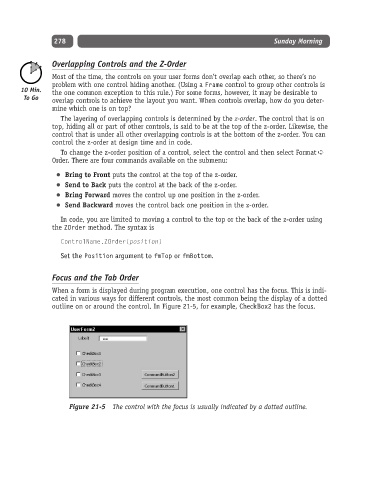
               outline on or around the control. In Figure 21-5, for example, CheckBox2 has the focus.


                    Figure 21-5 The control with the focus is usually indicated by a dotted outline.

