


Page 225 - Make Your Own PCBs with EAGLE from Schematic Designs to Finished Boards
P. 225
You also can just use enough letters to make the command unique—in this case, just a would work
  fine.

      The next section of the command line specifies what is to be added. In this case, it is the part R-
  US_VMTA55 in the library .rcl. Following this are the coordinates where the part is to be placed.
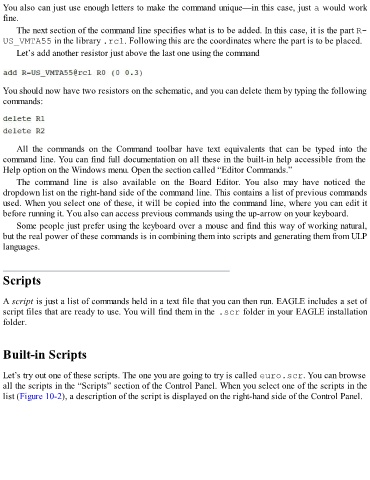
      Let’s add another resistor just above the last one using the command


  You should now have two resistors on the schematic, and you can delete them by typing the following
  commands:


      All  the  commands  on  the  Command  toolbar  have  text  equivalents  that  can  be  typed  into  the
  command line. You can find full documentation on all these in the built-in help accessible from the
  Help option on the Windows menu. Open the section called “Editor Commands.”

      The  command  line  is  also  available  on  the  Board  Editor.  You  also  may  have  noticed  the
  dropdown list on the right-hand side of the command line. This contains a list of previous commands
  used. When you select one of these, it will be copied into the command line, where you can edit it
  before running it. You also can access previous commands using the up-arrow on your keyboard.

      Some people just prefer using the keyboard over a mouse and find this way of working natural,
  but the real power of these commands is in combining them into scripts and generating them from ULP
  languages.


  Scripts


  A script is just a list of commands held in a text file that you can then run. EAGLE includes a set of

  script files that are ready to use. You will find them in the .scr folder in your EAGLE installation
  folder.


  Built-in Scripts


  Let’s try out one of these scripts. The one you are going to try is called euro.scr. You can browse
  all the scripts in the “Scripts” section of the Control Panel. When you select one of the scripts in the
  list (Figure 10-2), a description of the script is displayed on the right-hand side of the Control Panel.

