


Page 224 - Make Your Own PCBs with EAGLE from Schematic Designs to Finished Boards
P. 224
CHAPTER 10

                   Commands, Scripts, and User-Language


                                                                                                 Programs


  S         ometimes, when designing an electronic project in EAGLE, you will come across activities


            that are repetitive or that you seem to need to do for every project you start. It would be nice
  to be able to automate such activities and save yourself some time.

      Fortunately for us, EAGLE includes technology to do just such automations. Scripts are simple
  lists of text commands to be invoked and are useful enough. However, EAGLE also includes a user-
  language program (ULP) language. This is a fully featured programming language that allows you to
  branch  off  and  do  different  things  under  different  circumstances  or  repeat  certain  instructions  a
  number of times in a loop. For example, later we will look at how you can use a ULP to automatically
  smash all the parts on a schematic.

      Ultimately,  whether  you  use  a  ULP  language  or  a  simpler  script,  the  end  result  will  be  the
  invocation of commands, and it is here that we will start.


  Commands


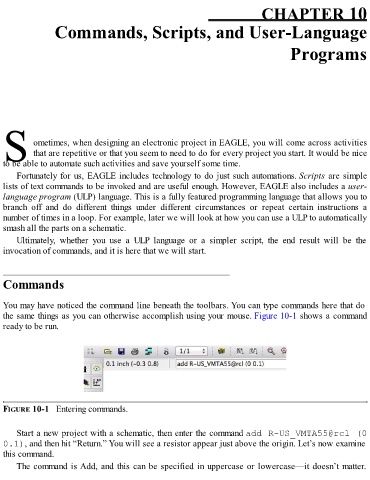
  You may have noticed the command line beneath the toolbars. You can type commands here that do
  the same things as you can otherwise accomplish using your mouse. Figure 10-1 shows a command

  ready to be run.


  FIGURE 10-1   Entering commands.


      Start a new project with a schematic, then enter the command add R-US_VMTA55@rcl (0
  0.1), and then hit “Return.” You will see a resistor appear just above the origin. Let’s now examine
  this command.

      The command is Add, and this can be specified in uppercase or lowercase—it doesn’t matter.

