


Page 517 - 02. Subyek Computer Aided Design - Beginner’s Guide to SOLIDWORKS 2019- Level 1 by Alejandro Reyes
P. 517
Beginner's Guide to SOLIDWORKS 2019- Level I


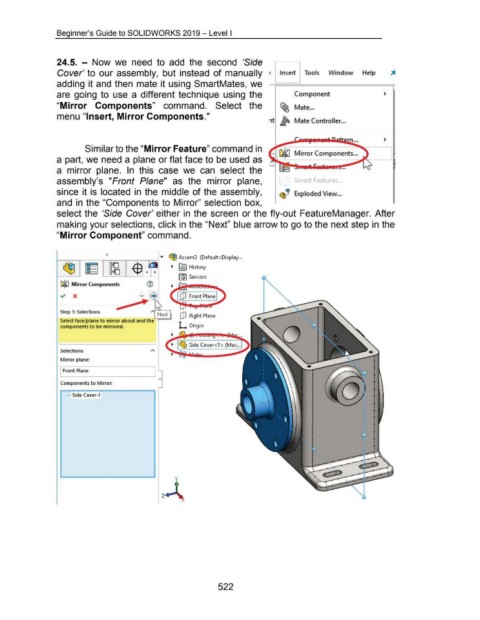
                                    24.5.  - Now we  need  to  add  the  second  'Side


                                     Cover' to  our assembly,  but  instead  of manually                                                                                 r  Insert  Tools                     Window                Help


                                    adding it and then  mate it using SmartMates, we


                                    are  going  to  use  a  different technique  using  the                                                                                  I           Component


                                    "Mirror  Components"  command.  Select  the                                                                                                 ~ Mate ...


                                    menu "Insert, Mirror Components."
                                                                                                                                                                         nt  ~ Mate Controller ...


                                                                                                                                                                             I


                                                      Similar to the "Mirror Feature" command in
                                                                                                                                                                                         Mirror Components ...
                                    a part, we need a plane or flat face to be used as


                                    a  mirror  plane.  In  this  case  we  can  select  the                                                                                                                           •••


                                    assembly's  "Front  Plane"  as  the  mirror  plane,                                                                                      I           :>mart Features ...


                                    since  it is  located  in  the  middle of the assembly,                                                                                     <!b··    Exploded View ...
                                                                                                                                                                                    ~

                                    and  in  the "Components to  Mirror" selection  box,                                                                                     I


                                    select the  'Side  Cover' either in  the screen  or the fly-out  FeatureManager.  After


                                    making your selections, click in the "Next" blue arrow to go to the next step in the


                                    "Mirror Component" command.


                                                                   0
                                    t----,------r--~--,----l .....  ~ Assem3  (Default<Display ...

                                                                                                            ~  [l§) History


                                                                                                                 [G)  Sensors

                                       DJiiJ  Mirror Components


                                      Step 1: Selections
                                                                                                                 [jJ  Right Plane

                                       Select face/plane to mirror about and the
                                       components to be mirrored.


                                      Selections


                                       Mirror plane:


                                      I Front Plane


                                       Components to Mirror:


                                          ..... Side Cover-1


                                                                                                              y


                                                                                                      z


                                                                                                                                         522

