


Page 717 - 02. Subyek Computer Aided Design - Beginner’s Guide to SOLIDWORKS 2019- Level 1 by Alejandro Reyes
P. 717
Beginner's Guide to SOLIDWORKS 2019- Level I


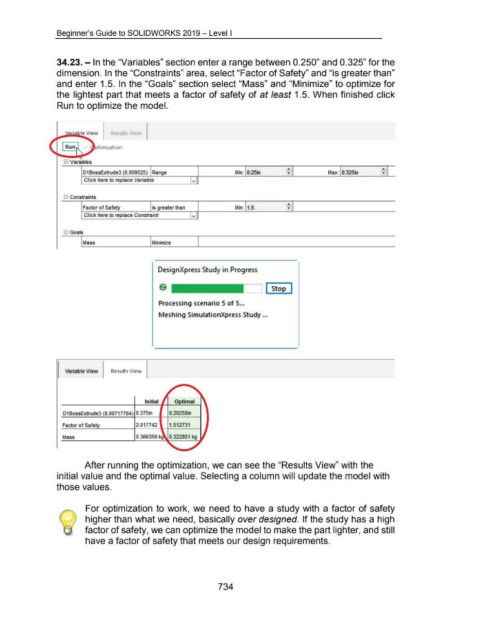
                                    34.23.- In the "Variables" section enter a range between 0.250" and 0.325" for the


                                    dimension. In the "Constraints" area, select "Factor of Safety" and "is greater than"


                                    and enter 1.5. In the "Goals" section select "Mass" and "Minimize" to optimize for


                                    the  lightest part that meets a factor of safety of at least 1.5. When finished  click


                                    Run to optimize the model.


                                     I  Variable View

                                ~                           ptimization

                                          Run o
                                X


                                         El Vari;bles
                                                                                                                                                                                     ..                                                         ..


                                                     01 BossE.xtrude3 (0.009525)  Range                                                             r.1 in:  0.25in                  ...                      Max:  0.325in                     ...

                                                     Click here to replace Variable                                      v


                                         El Constraints
                                                                                                                                                                                     ..

                                                                                                                                                                                     ...
                                                     Factor of Safety                           is greater than                                     Min:  1.5                       ........
                                                     Click here to replace Constraint                                    v


                                         El Goals

                                                                                                                            I
                                                                                               I Minimize
                                                   I Mass


                                                                                                    DesignXpress Study in Progress


                                                                                                    Processing scenario 5 of 5 ...


                                                                                                    Meshing SimulationXpress Study ...


                                         Variable View                Results View


                                        01 BossE.xtrude3 (0.0071 n84)  0.375in                             0.28259in


                                        Factor of Safety                              2.o1n42              1.512731


                                        Mass                                          0.366358 k


                                                      After running the optimization, we can see the "Results View" with the


                                    initial value and the optimal value. Selecting a column will update the model with


                                    those values.


                                                      For optimization to work,  we  need to have a study with  a factor of safety


                                                      higher than what we need, basically over designed.  If the study has a high


                                                      factor of safety, we can optimize the model to make the part lighter, and still


                                                      have a factor of safety that meets our design requirements.


                                                                                                                                         734

