


Page 716 - 02. Subyek Computer Aided Design - Beginner’s Guide to SOLIDWORKS 2019- Level 1 by Alejandro Reyes
P. 716
Analysis: SimulationXpress
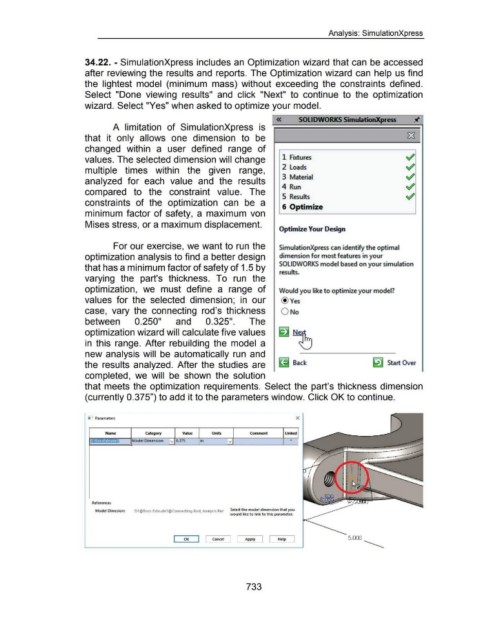
34.22. - SimulationXpress includes an Optimization wizard that can be accessed
after reviewing the results and reports. The Optimization wizard can help us find
the lightest model (minimum mass) without exceeding the constraints defined.
Select "Done viewing results" and click "Next" to continue to the optimization
wizard. Select "Yes" when asked to optimize your model.
« SOLIDWORKS Simulmon)(press
A limitation of SimulationXpress is
that it only allows one dimension to be
changed within a user defined range of
values. The selected dimension will change fl Fixtures
2 Loads
multiple times within the given range,
3 Material
analyzed for each value and the results
4 Run
compared to the constraint value. The
5 Results
constraints of the optimization can be a
16 Optimize
minimum factor of safety, a maximum von
Mises stress, or a maximum displacement.
Optimize Your Design
For our exercise, we want to run the SimulationXpress can identify the optimal
optimization analysis to find a better design dimension for most features in your
SOLIDWORKS model based on your simulation
that has a minimum factor of safety of 1.5 by
results.
varying the part's thickness. To run the
optimization, we must define a range of Would you like to optimize your model?
values for the selected dimension; in our @Yes
case, vary the connecting rod's thickness 0 No
between 0.250" and 0.325". The
optimization wizard will calculate five values
in this range. After rebuilding the model a
new analysis will be automatically run and
v:1_
the results analyzed. After the studies are .'-1 Back ~ Start Over
completed, we will be shown the solution
that meets the optimization requirements. Select the part's thickness dimension
(currently 0.375") to add it to the parameters window. Click OK to continue.
I Parameters X
Name category Value Units Comment Linked
Dimension v in v *
References
Model Dimesion: 01 @Boss-Extrude3@Connecting Rod_Analysis.Par1 Select the model dimension that you
would like to link to this parameter.
OK I Cancel I Apply [ Help 5.000
-----
733

