


Page 714 - 02. Subyek Computer Aided Design - Beginner’s Guide to SOLIDWORKS 2019- Level 1 by Alejandro Reyes
P. 714
Analysis:  SimulationXpress


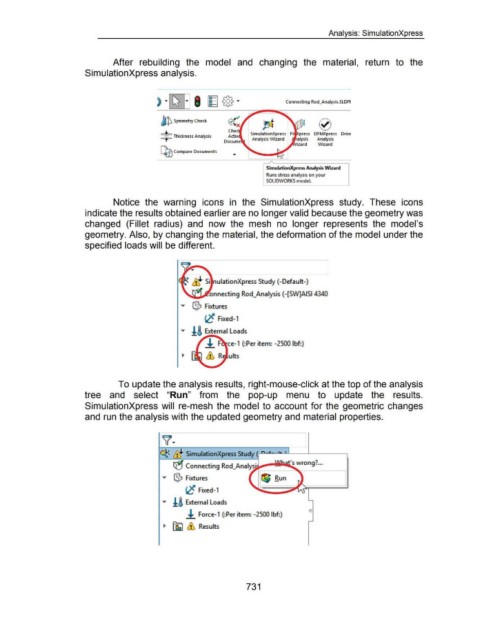
                                                                        After  rebuilding  the  model  and  changing  the  material,  return  to  the


                                                      SimulationXpress analysis.


                                                                                                                                                                                    Connecting Rod_Analysis.SLDPI


                                                                                                     ~ Symmetry Check


                                                                                                                                                Chec
                                                                                                     *Thickness Analysis                        Activ         SimulationXpress  Fl  press  DFMXpress  Driv~
                                                                                                                                                              Analysis Wizard              alysis      Analysis

                                                                                                                                                                                           izard        Wizard
                                                                                                     Q?j Compare Documents


                                                                                                                                                                       __/'.._
                                                                                                                                                                       SimulationXpress Analysis Wizard

                                                                                                                                                                        Runs stress analysis on your
                                                                                                                                                                     I SOLIDWORKS model.


                                                                        Notice  the  warning  icons  in  the  SimulationXpress  study.  These  icons


                                                      indicate the results obtained earlier are no longer valid because the geometry was


                                                      changed  (Fillet  radius)  and  now  the  mesh  no  longer  represents  the  model's


                                                      geometry. Also, by changing the material, the deformation of the model under the


                                                      specified loads will be different.


                                                                                                                                         ulationXpress Study (-Default-)


                                                                                                                                      nnecting Rod_Analysis ( -[SW]AISI4340


                                                                                                                  ""'  ($ Fixtures


                                                                                                                                 r,C  Fixed-1


                                                                                                                  ""'  !S External Loads


                                                                                                                                 ± F  ce-1 (:Per item: -2500 lbf:)


                                                                           To update the analysis results, right-mouse-click at the top of the analysis


                                                      tree  and  select  "Run"  from  the  pop-up  menu  to  update  the  results.


                                                      SimulationXpress will  re-mesh  the  model  to  account for the  geometric changes


                                                      and run the analysis with the updated geometry and material properties.


                                                                                                     ~ ti_~ SimulationXpress Study (  n -~-- -~ '


                                                                                                             ~ Connecting Rod_Analys·                                 _                's wrong? ...

                                                                                                                                                                  1
                                                                                                      ""'  ($ Flxt:ures                                            @ Run


                                                                                                                     r,C  Fixed-1


                                                                                                      ""'  !A External Loads

                                                                                                                                                                                                  0
                                                                                                                     .!. Force-1 (:Per item: -2500 lbf:)


                                                                                                       ~  [t}  &  Results


                                                                                                                                                           731

