


Page 496 - Excel 2007 Bible
P. 496
28_044039 ch22.qxp  11/21/06  11:12 AM  Page 453
                                                                          Enhancing Your Work with Pictures and Drawings
                                             When you select a WordArt image, Excel displays its Drawing Tools context menu. Use the controls to vary
                                             the look of your WordArt.
                                                       The controls in the Drawing Tools ➪ Format ➪ Shape Styles group operate on the shape that
                                          NOTE
                                          NOTE
                                                       contains the text, not the text. If you want to apply text formatting, use the control in the
                                            Drawing Tools ➪ Format ➪ WordArt Styles group. You can also use some of the standard formatting controls
                                             on the Home tab or the Mini toolbar. In addition, right-click the WordArt and select Format Text Effects for
                                             more formatting options.
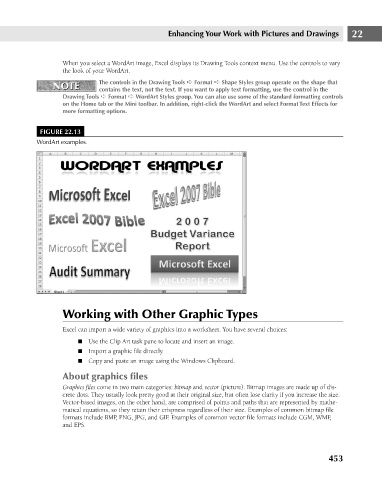
                                      FIGURE 22.13
                                     WordArt examples.


                                             Working with Other Graphic Types                                                22

                                             Excel can import a wide variety of graphics into a worksheet. You have several choices:
                                                 n Use the Clip Art task pane to locate and insert an image.
                                                 n Import a graphic file directly.
                                                 n Copy and paste an image using the Windows Clipboard.

                                             About graphics files
                                             Graphics files come in two main categories: bitmap and vector (picture). Bitmap images are made up of dis-
                                             crete dots. They usually look pretty good at their original size, but often lose clarity if you increase the size.
                                             Vector-based images, on the other hand, are comprised of points and paths that are represented by mathe-
                                             matical equations, so they retain their crispness regardless of their size. Examples of common bitmap file
                                             formats include BMP, PNG, JPG, and GIF. Examples of common vector file formats include CGM, WMF,
                                             and EPS.


                                                                                                                      453

