


Page 499 - Excel 2007 Bible
P. 499
28_044039 ch22.qxp  11/21/06  11:12 AM  Page 456
                                  Part III
                                              Creating Charts and Graphics
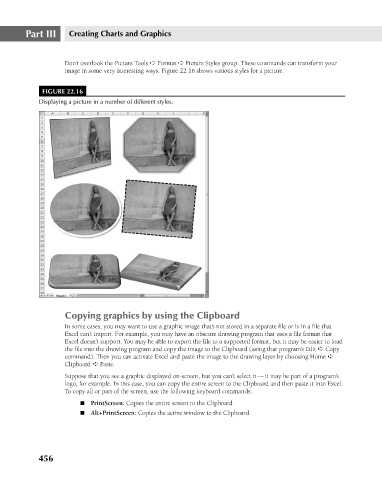
                                             Don’t overlook the Picture Tools ➪ Format ➪ Picture Styles group. These commands can transform your
                                             image in some very interesting ways. Figure 22.16 shows various styles for a picture.
                                       FIGURE 22.16
                                      Displaying a picture in a number of different styles.


                                             Copying graphics by using the Clipboard
                                             In some cases, you may want to use a graphic image that’s not stored in a separate file or is in a file that
                                             Excel can’t import. For example, you may have an obscure drawing program that uses a file format that
                                             Excel doesn’t support. You may be able to export the file to a supported format, but it may be easier to load
                                             the file into the drawing program and copy the image to the Clipboard (using that program’s Edit ➪ Copy
                                             command). Then you can activate Excel and paste the image to the drawing layer by choosing Home ➪
                                             Clipboard ➪ Paste.
                                             Suppose that you see a graphic displayed on-screen, but you can’t select it — it may be part of a program’s
                                             logo, for example. In this case, you can copy the entire screen to the Clipboard and then paste it into Excel.
                                             To copy all or part of the screen, use the following keyboard commands:

                                                 n PrintScreen: Copies the entire screen to the Clipboard.
                                                 n Alt+PrintScreen: Copies the active window to the Clipboard.


                                      456

