


Page 498 - Excel 2007 Bible
P. 498
28_044039 ch22.qxp  11/21/06  11:12 AM  Page 455
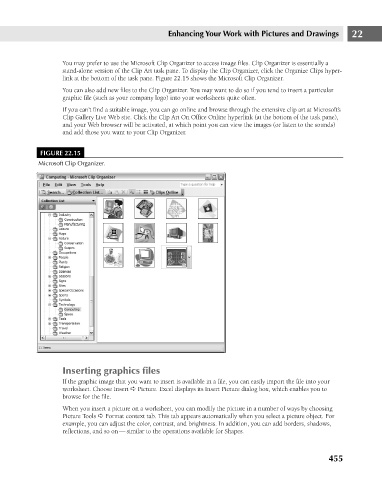
                                             You may prefer to use the Microsoft Clip Organizer to access image files. Clip Organizer is essentially a
                                             stand-alone version of the Clip Art task pane. To display the Clip Organizer, click the Organize Clips hyper-
                                             link at the bottom of the task pane. Figure 22.15 shows the Microsoft Clip Organizer.
                                             You can also add new files to the Clip Organizer. You may want to do so if you tend to insert a particular
                                             graphic file (such as your company logo) into your worksheets quite often.
                                             If you can’t find a suitable image, you can go online and browse through the extensive clip art at Microsoft’s
                                             Clip Gallery Live Web site. Click the Clip Art On Office Online hyperlink (at the bottom of the task pane),
                                             and your Web browser will be activated, at which point you can view the images (or listen to the sounds)
                                             and add those you want to your Clip Organizer.
                                      FIGURE 22.15
                                      Microsoft Clip Organizer.


                                             Inserting graphics files     Enhancing Your Work with Pictures and Drawings     22
                                             If the graphic image that you want to insert is available in a file, you can easily import the file into your
                                             worksheet. Choose Insert ➪ Picture. Excel displays its Insert Picture dialog box, which enables you to
                                            browse for the file.
                                            When you insert a picture on a worksheet, you can modify the picture in a number of ways by choosing
                                            Picture Tools ➪ Format context tab. This tab appears automatically when you select a picture object. For
                                            example, you can adjust the color, contrast, and brightness. In addition, you can add borders, shadows,
                                            reflections, and so on — similar to the operations available for Shapes.


                                                                                                                      455

