


Page 144 - Mastering SolidWorks
P. 144
|
                                                                             Creating a Simple part    113


                      ◆   Use a method other than history-based design. This would require a different software
                          package, such as Solid Edge. SolidWorks, in fact, cannot do what is known as “direct
                          modeling,” although the company will tell you otherwise.
                       I discuss this issue again in Chapter 12, “Editing, Evaluating, and Troubleshooting.”

                    Creating a Simple Part

                    Chapter 2, “Navigating the SolidWorks Interface,” introduced the tools and features you will use
                    to create simple parts, and this chapter teaches you how to string the simple features together
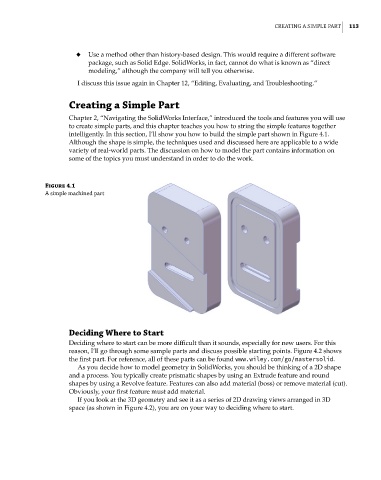
                    intelligently. In this section, I’ll show you how to build the simple part shown in Figure 4.1.
                    Although the shape is simple, the techniques used and discussed here are applicable to a wide
                    variety of real-world parts. The discussion on how to model the part contains information on
                    some of the topics you must understand in order to do the work.


              Figure 4.1
              a simple machined part


                    Deciding Where to Start
                    Deciding where to start can be more difficult than it sounds, especially for new users. For this
                    reason, I’ll go through some sample parts and discuss possible starting points. Figure 4.2 shows
                    the first part. For reference, all of these parts can be found www.wiley.com/go/mastersolid.
                       As you decide how to model geometry in SolidWorks, you should be thinking of a 2D shape
                    and a process. You typically create prismatic shapes by using an Extrude feature and round
                    shapes by using a Revolve feature. Features can also add material (boss) or remove material (cut).
                    Obviously, your first feature must add material.
                       If you look at the 3D geometry and see it as a series of 2D drawing views arranged in 3D
                    space (as shown in Figure 4.2), you are on your way to deciding where to start.

