


Page 299 -
P. 299
P
                                T
                270   P a r t   V :  a r t   V :    T h e   G r e e n i n g   P r o c e s sh e   G r e e n i n g   P r o c e s s
                270

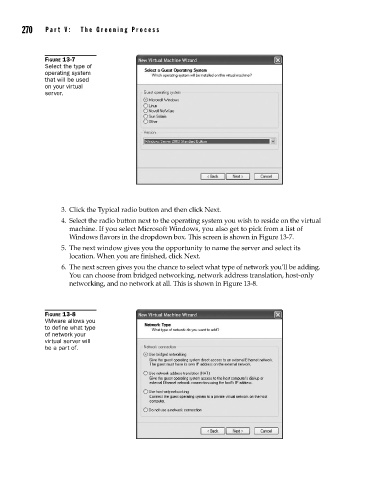
                      FIGURE 13-7
                      Select the type of
                      operating system
                      that will be used
                      on your virtual
                      server.


                           3.  Click the Typical radio button and then click Next.
                           4.  Select the radio button next to the operating system you wish to reside on the virtual
                             machine. If you select Microsoft Windows, you also get to pick from a list of
                             Windows flavors in the dropdown box. This screen is shown in Figure 13-7.
                           5.  The next window gives you the opportunity to name the server and select its
                             location. When you are finished, click Next.
                           6.  The next screen gives you the chance to select what type of network you’ll be adding.
                             You can choose from bridged networking, network address translation, host-only
                             networking, and no network at all. This is shown in Figure 13-8.


                      FIGURE 13-8
                      VMware allows you
                      to define what type
                      of network your
                      virtual server will
                      be a part of.

