


Page 160 - Make Your Own PCBs with EAGLE from Schematic Designs to Finished Boards
P. 160
Loading a CAM Job


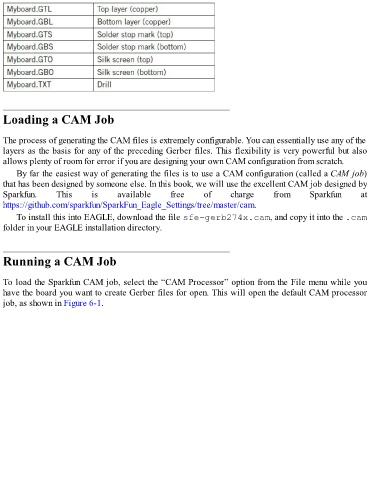
  The process of generating the CAM files is extremely configurable. You can essentially use any of the
  layers as the basis for any of the preceding Gerber files. This flexibility is very powerful but also
  allows plenty of room for error if you are designing your own CAM configuration from scratch.

      By far the easiest way of generating the files is to use a CAM configuration (called a CAM job)
  that has been designed by someone else. In this book, we will use the excellent CAM job designed by
  Sparkfun.         This       is       available        free       of       charge        from        Sparkfun         at

  https://github.com/sparkfun/SparkFun_Eagle_Settings/tree/master/cam.
      To install this into EAGLE, download the file sfe-gerb274x.cam, and copy it into the .cam
  folder in your EAGLE installation directory.


  Running a CAM Job


  To load the Sparkfun CAM job, select the “CAM Processor” option from the File menu while you
  have the board you want to create Gerber files for open. This will open the default CAM processor
  job, as shown in Figure 6-1.

