


Page 238 - Make Your Own PCBs with EAGLE from Schematic Designs to Finished Boards
P. 238
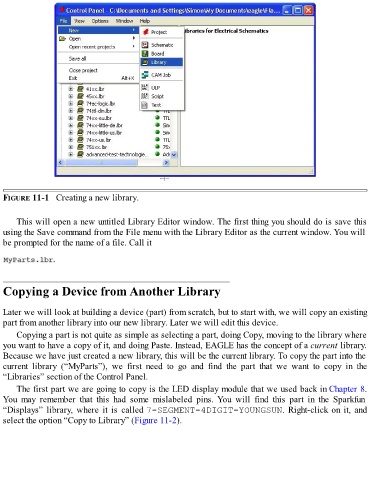
FIGURE 11-1   Creating a new library.


      This will open a new untitled Library Editor window. The first thing you should do is save this
  using the Save command from the File menu with the Library Editor as the current window. You will
  be prompted for the name of a file. Call it


  Copying a Device from Another Library


  Later we will look at building a device (part) from scratch, but to start with, we will copy an existing
  part from another library into our new library. Later we will edit this device.
      Copying a part is not quite as simple as selecting a part, doing Copy, moving to the library where
  you want to have a copy of it, and doing Paste. Instead, EAGLE has the concept of a current library.

  Because we have just created a new library, this will be the current library. To copy the part into the
  current  library  (“MyParts”),  we  first  need  to  go  and  find  the  part  that  we  want  to  copy  in  the
  “Libraries” section of the Control Panel.

      The first part we are going to copy is the LED display module that we used back in Chapter 8.
  You  may  remember  that  this  had  some  mislabeled  pins.  You  will  find  this  part  in  the  Sparkfun
  “Displays”  library,  where  it  is  called 7-SEGMENT-4DIGIT-YOUNGSUN. Right-click on it, and
  select the option “Copy to Library” (Figure 11-2).

