


Page 236 - Make Your Own PCBs with EAGLE from Schematic Designs to Finished Boards
P. 236
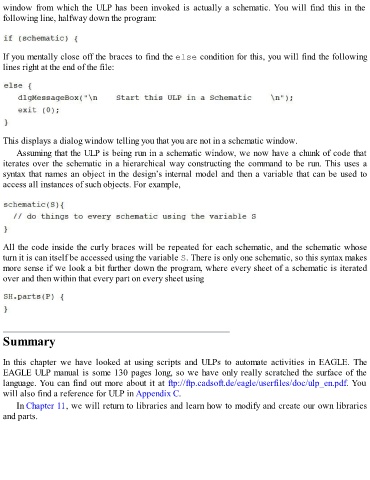
window  from  which  the  ULP  has  been  invoked  is  actually  a  schematic. You  will  find  this  in  the
  following line, halfway down the program:


  If you mentally close off the braces to find the else condition for this, you will find the following
  lines right at the end of the file:


  This displays a dialog window telling you that you are not in a schematic window.

      Assuming that the ULP is being run in a schematic window, we now have a chunk of code that
  iterates over the schematic in a hierarchical way constructing the command to be run. This uses a
  syntax that names an object in the design’s internal model and then a variable that can be used to
  access all instances of such objects. For example,


  All the code inside the curly braces will be repeated for each schematic, and the schematic whose
  turn it is can itself be accessed using the variable S. There is only one schematic, so this syntax makes

  more sense if we look a bit further down the program, where every sheet of a schematic is iterated
  over and then within that every part on every sheet using


  Summary


  In  this  chapter  we  have  looked  at  using  scripts  and  ULPs  to  automate  activities  in  EAGLE.  The
  EAGLE ULP manual is some 130 pages long, so we have only really scratched the surface of the
  language. You can find out more about it at ftp://ftp.cadsoft.de/eagle/userfiles/doc/ulp_en.pdf. You
  will also find a reference for ULP in Appendix C.

      In Chapter 11, we will return to libraries and learn how to modify and create our own libraries
  and parts.

