


Page 356 - Mastering SolidWorks
P. 356
|
                                                           COnTrOllIng SUPPrESSIOn STATES OF FEATUrES    329


                    Using Expressions
                    Expressions can also be entered directly into Dimension dialog boxes in the Modify dialog box
                    and PropertyManager value boxes. The expressions must be composed of numbers and math-
                    ematical operators. An expression such as
                       2.375+(4.8/3)-1.1
                    is perfectly acceptable, as is

                       1+1/2
                    or
                       1 1/2
                    In the second case in this example, the plus symbol is understood.
                       Other types of operations are also available, such as ones for changing units in a dimension
                    box. For example, if you are editing a part in inches and enter 40mm, then SolidWorks performs
                    the conversion for you. You can even mix units in a single expression such as 4.875+3.5mm,
                    where the inch part is assumed as the document units.
                       Unlike equations, SolidWorks does not remember the expression itself, only the final value.
                    The difference between an expression and an equation is the presence of dimension or variable
                    names. Expressions can be entered into any place where you enter dimensions for
                    SolidWorks features.


                    Controlling Suppression States of Features
                    You can use the IF statement described earlier in this chapter to control suppression states of
                    features and components. An example of the syntax is
                       <feature name> = if(expression, value if true, value if false)
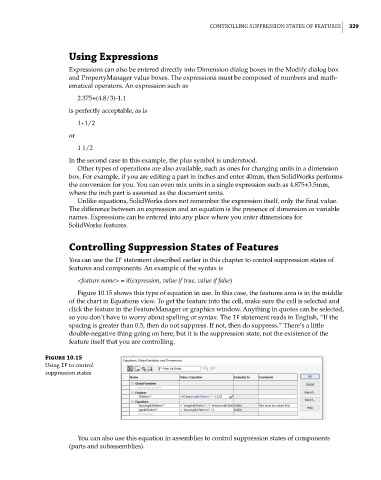
                       Figure 10.15 shows this type of equation in use. In this case, the features area is in the middle
                    of the chart in Equations view. To get the feature into the cell, make sure the cell is selected and
                    click the feature in the FeatureManager or graphics window. Anything in quotes can be selected,
                    so you don’t have to worry about spelling or syntax. The IF statement reads in English, “If the
                    spacing is greater than 0.5, then do not suppress. If not, then do suppress.” There’s a little
                    double-negative thing going on here, but it is the suppression state, not the existence of the
                    feature itself that you are controlling.
              Figure 10.15
              Using IF to control
              suppression states


                       You can also use this equation in assemblies to control suppression states of components
                    (parts and subassemblies).

