


Page 358 - Mastering SolidWorks
P. 358
|
                                                                          TUTOrIAl: USIng EqUATIOnS    331


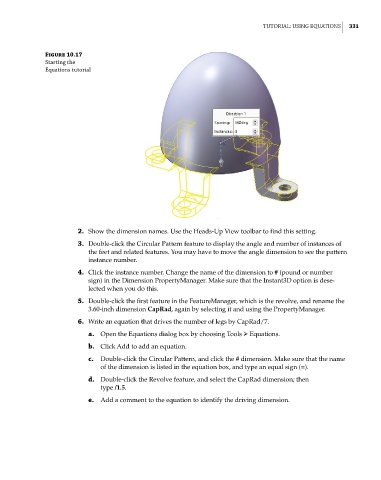
              Figure 10.17
              Starting the
              Equations tutorial


                       2.  Show the dimension names. Use the Heads-Up View toolbar to find this setting.

                       3.  Double-click the Circular Pattern feature to display the angle and number of instances of
                          the feet and related features. You may have to move the angle dimension to see the pattern
                          instance number.
                       4.  Click the instance number. Change the name of the dimension to # (pound or number
                          sign) in the Dimension PropertyManager. Make sure that the Instant3D option is dese-
                          lected when you do this.

                       5.  Double-click the first feature in the FeatureManager, which is the revolve, and rename the
                          3.60-inch dimension CapRad, again by selecting it and using the PropertyManager.
                       6.  Write an equation that drives the number of legs by CapRad/7.
                          a.  Open the Equations dialog box by choosing Tools ➢ Equations.
                          b.  Click Add to add an equation.

                          c.  Double-click the Circular Pattern, and click the # dimension. Make sure that the name
                             of the dimension is listed in the equation box, and type an equal sign (=).
                          d.  Double-click the Revolve feature, and select the CapRad dimension; then
                             type /1.5.

                          e.  Add a comment to the equation to identify the driving dimension.

