


Page 365 - Mastering SolidWorks
P. 365
|
                                                              Controlling iteMs With Configurations    339


                    By thoughtfully selecting the configuration names, you can save yourself and your coworkers
                    lots of time when inserting select configs into an assembly.

                    Activating Configurations
                    Within a part file, to change the display from one configuration to another, you must first switch
                    to the ConfigurationManager panel, and then either double-click the desired config or right-click
                    it and select Show Configuration.
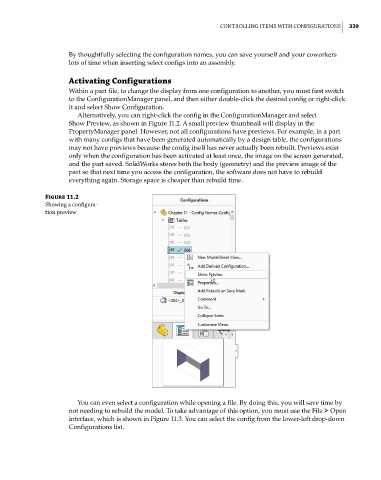
                       Alternatively, you can right-click the config in the ConfigurationManager and select
                    Show Preview, as shown in Figure 11.2. A small preview thumbnail will display in the
                    PropertyManager panel. However, not all configurations have previews. For example, in a part
                    with many configs that have been generated automatically by a design table, the configurations
                    may not have previews because the config itself has never actually been rebuilt. Previews exist
                    only when the configuration has been activated at least once, the image on the screen generated,
                    and the part saved. SolidWorks stores both the body (geometry) and the preview image of the
                    part so that next time you access the configuration, the software does not have to rebuild
                    everything again. Storage space is cheaper than rebuild time.


              Figure 11.2
              showing a configura-
              tion preview


                       You can even select a configuration while opening a file. By doing this, you will save time by
                    not needing to rebuild the model. To take advantage of this option, you must use the File ➢ Open
                    interface, which is shown in Figure 11.3. You can select the config from the lower-left drop-down
                    Configurations list.

