


Page 367 - Mastering SolidWorks
P. 367
|
                                                              Controlling iteMs With Configurations    341


                    Creating a New Config
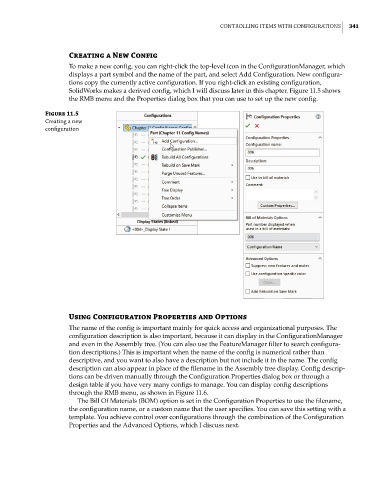
                    To make a new config, you can right-click the top-level icon in the ConfigurationManager, which
                    displays a part symbol and the name of the part, and select Add Configuration. New configura-
                    tions copy the currently active configuration. If you right-click an existing configuration,
                    SolidWorks makes a derived config, which I will discuss later in this chapter. Figure 11.5 shows
                    the RMB menu and the Properties dialog box that you can use to set up the new config.

              Figure 11.5
              Creating a new
              configuration


                    Using Configuration Properties and Options
                    The name of the config is important mainly for quick access and organizational purposes. The
                    configuration description is also important, because it can display in the ConfigurationManager
                    and even in the Assembly tree. (You can also use the FeatureManager filter to search configura-
                    tion descriptions.) This is important when the name of the config is numerical rather than
                    descriptive, and you want to also have a description but not include it in the name. The config
                    description can also appear in place of the filename in the Assembly tree display. Config descrip-
                    tions can be driven manually through the Configuration Properties dialog box or through a
                    design table if you have very many configs to manage. You can display config descriptions
                    through the RMB menu, as shown in Figure 11.6.
                       The Bill Of Materials (BOM) option is set in the Configuration Properties to use the filename,
                    the configuration name, or a custom name that the user specifies. You can save this setting with a
                    template. You achieve control over configurations through the combination of the Configuration
                    Properties and the Advanced Options, which I discuss next.

