


Page 368 - Mastering SolidWorks
P. 368
|
        342   CHAPTER 11  Working With Part Configurations


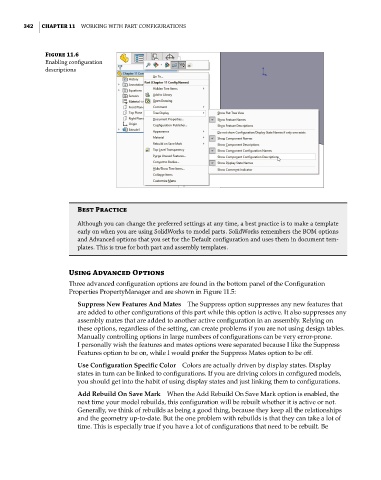
              Figure 11.6
              enabling configuration
              descriptions


                       Best Practice
                       although you can change the preferred settings at any time, a best practice is to make a template
                       early on when you are using solidWorks to model parts. solidWorks remembers the BoM options
                       and advanced options that you set for the Default configuration and uses them in document tem-
                       plates. this is true for both part and assembly templates.


                    Using Advanced Options
                    Three advanced configuration options are found in the bottom panel of the Configuration
                    Properties PropertyManager and are shown in Figure 11.5:
                       Suppress New Features And Mates  The Suppress option suppresses any new features that
                       are added to other configurations of this part while this option is active. It also suppresses any
                       assembly mates that are added to another active configuration in an assembly. Relying on
                       these options, regardless of the setting, can create problems if you are not using design tables.
                       Manually controlling options in large numbers of configurations can be very error-prone.
                       I personally wish the features and mates options were separated because I like the Suppress
                       Features option to be on, while I would prefer the Suppress Mates option to be off.

                       Use Configuration Specific Color  Colors are actually driven by display states. Display
                       states in turn can be linked to configurations. If you are driving colors in configured models,
                       you should get into the habit of using display states and just linking them to configurations.
                       Add Rebuild On Save Mark  When the Add Rebuild On Save Mark option is enabled, the
                       next time your model rebuilds, this configuration will be rebuilt whether it is active or not.
                       Generally, we think of rebuilds as being a good thing, because they keep all the relationships
                       and the geometry up-to-date. But the one problem with rebuilds is that they can take a lot of
                       time. This is especially true if you have a lot of configurations that need to be rebuilt. Be

