


Page 544 - 02. Subyek Computer Aided Design - Beginner’s Guide to SOLIDWORKS 2019- Level 1 by Alejandro Reyes
P. 544
Assembly Modeling
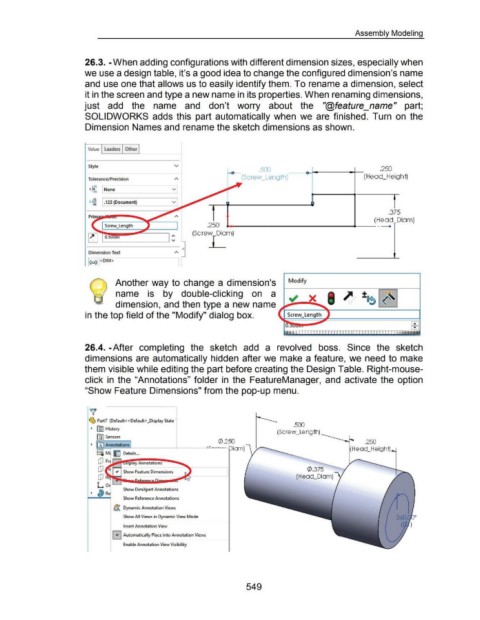
26.3. -When adding configurations with different dimension sizes, especially when
we use a design table, it's a good idea to change the configured dimension's name
and use one that allows us to easily identify them. To rename a dimension, select
it in the screen and type a new name in its properties. When renaming dimensions,
just add the name and don't worry about the "@feature_name" part;
SOLIDWORKS adds this part automatically when we are finished. Turn on the
Dimension Names and rename the sketch dimensions as shown.
Value Leaders Other
Style v
.50J .250
(Screw _Length) (Head_Height)
Tolerance/Precision
•.01
1.so None v
-.01
.01
x.xxx .123 (Document) v
.01 f
f .375
•
-
Screw_l ength .250 (Head_Diam)
(Screw _Diam)
I\
0.5 '"
'V l_
0
Dimension Text A.
Another way to change a dimension's Modify
r-----------------~~--~
name is by double-clicking on a
dimension, and then type a new name
in the top field of the "Modify" dialog box.
26.4. -After completing the sketch add a revolved boss. Since the sketch
dimensions are automatically hidden after we make a feature, we need to make
them visible while editing the part before creating the Design Table. Right-mouse-
click in the "Annotations" folder in the FeatureManager, and activate the option
"Show Feature Dimensions" from the pop-up menu.
~
~ Part7 (Default< <Default> _Display State ·
.500
~ @51 History
(Screw _Length)
fQ} Sensors
(/).250 .250
~ 00 Annotations
o- ~--------~----~~· (Head_Height)
8-o M 1: j Details ...
CD Fr ~~~=~ ................
(/).375
(Head_Diam)
Show DimXpert Annotations
Show Reference Annotations
$A Dynamic Annotation Views
Show All Views in Dynamic View Mode
Insert Annotation View
0 Automatically Place into Annotation Views
Enable Annotation View Visibility
549

