


Page 688 - 02. Subyek Computer Aided Design - Beginner’s Guide to SOLIDWORKS 2019- Level 1 by Alejandro Reyes
P. 688
Animation and Rendering


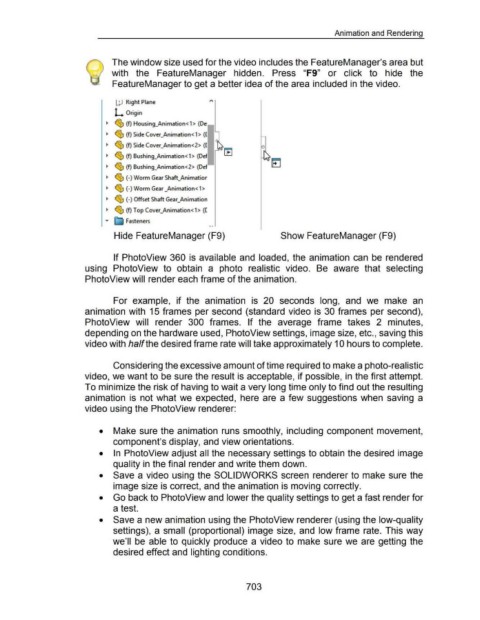
                                                                       The window size used for the video includes the FeatureManager's area but


                                                                       with  the  FeatureManager  hidden.  Press  "F9"  or  click  to  hide  the


                                                                       FeatureManager to get a better idea of the area included in the video.


                                                                         UJ  Right Plane                                            "


                                                                         L  Origin


                                                                   ~  ~ (f) Housing_Animation < 1 > (De


                                                                   ~  ~ (f) Side Cover_Animation<1>  ([


                                                                   ~  ~ (f) Side Cover_Animation<2>  ([


                                                                   ~  ~ (f) Bushing_Animation < 1 > (Def


                                                                   ~  ~ (f) Bushing_Animation < 2>  (Def


                                                                   ~  ~ (-)Worm Gear Shaft_Animatior


                                                                   ~  ~ (-)Worm Gear _Animation<1>


                                                                   ~  ~ (-)Offset Shaft Gear_Animation


                                                                   ~  ~ (f) Top Cover_Animation<1> ([


                                                                   ""'  ~ Fasteners
                                                                                                                                    • •

                                                                        Hide FeatureManager (F9)                                                                                 Show FeatureManager (F9)


                                                                        If PhotoView 360 is  available and  loaded,  the  animation  can  be  rendered


                                                      using  PhotoView  to  obtain  a  photo  realistic  video.  Be  aware  that  selecting


                                                      Photo View will render each frame of the animation.


                                                                        For  example,  if  the  animation  is  20  seconds  long,  and  we  make  an


                                                      animation with  15 frames per second  (standard video is  30 frames  per second),


                                                      PhotoView  will  render  300  frames.  If  the  average  frame  takes  2  minutes,


                                                      depending on the hardware used, Photo View settings, image size, etc., saving this


                                                      video with half the desired frame rate will take approximately 10 hours to complete.


                                                                        Considering the excessive amount of time required to make a photo-realistic


                                                      video, we want to be sure the result is acceptable, if possible, in the first attempt.


                                                      To minimize the risk of having to wait a very long time only to find out the resulting


                                                      animation  is  not what we  expected, here  are  a few suggestions when  saving  a


                                                      video using the PhotoView renderer:


                                                               •  Make sure the animation  runs smoothly,  including component movement,


                                                                        component's display, and view orientations.


                                                               •  In  PhotoView adjust all the necessary settings to obtain the desired image


                                                                        quality in the final render and write them down.


                                                               •  Save a video using the SOLIDWORKS screen  renderer to make sure the


                                                                        image size is correct, and the animation is moving correctly.


                                                               •  Go back to Photo View and lower the quality settings to get a fast render for


                                                                        a test.


                                                               •  Save a new animation using the PhotoView renderer (using the low-quality


                                                                        settings),  a small  (proportional) image size, and  low frame  rate.  This way


                                                                       we'll  be  able to  quickly produce a video to make sure we are  getting the


                                                                        desired effect and lighting conditions.


                                                                                                                                                           703

