Page 684 - 02. Subyek Computer Aided Design - Beginner’s Guide to SOLIDWORKS 2019- Level 1 by Alejandro Reyes
P. 684
Animation and Rendering


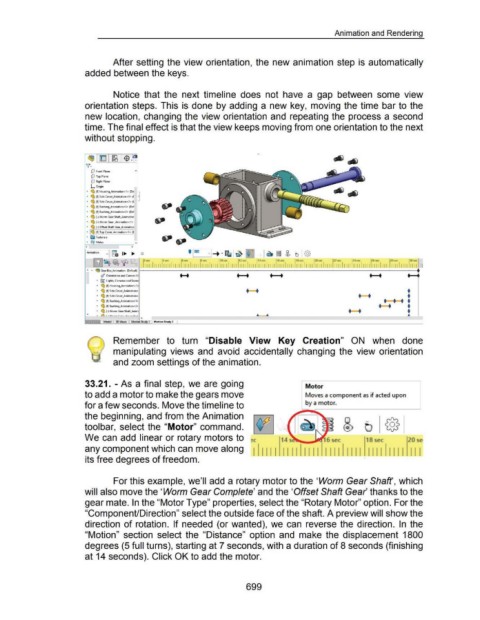
                                                                        After setting the view orientation,  the new animation step is automatically


                                                      added between the keys.


                                                                        Notice  that  the  next  timeline  does  not  have  a  gap  between  some  view


                                                      orientation steps. This is done by adding  a new key,  moving the time  bar to the


                                                      new location, changing the view orientation and  repeating the process a second


                                                      time. The final effect is that the view keeps moving from one orientation to the next


                                                      without stopping.


                                                          C!J  Front Plane
                                                          dJ  Top Plane
                                                          dJ  Right Plane
                                                         L Origin
                                                       .,  ~ (f) Housing_Animation< 1>  (De-
                                                       •  <SJ (f) SideCovor_Animation<1> (I   e
                                                       •  <SJ (f) Side Covor_Animation<2> (I
                                                       •  <SJ (f)  Bushing_Animation< 1> (Del
                                                       •  <SJ (f)  Bushing_Animation<2> (Del
                                                       •  <SJ (-) Worm Gear Shaft..Animatior
                                                       •  <SJ (-)Worm Gtar _Animation< I>
                                                       •  <SJ (-)Offset Shaft Gear_Animation
                                                       • lot§ (f) TopCover_Animation<l> ([
                                                       •  [l FasteneJs
                                                       •  @gl  Mates                 ..,
                                                       <                           >
                                                       Animation   .., I g.  1....  ....

                                                           LSZJ~ ~ '\P


                                                       "'  •  ~ GearBox_Animation  (Oefoult) ll---------7----------:-----:-------~----:------------:------:-----.
                                                                                                                                                     •  •                 •  •                                                          • •
                                                                d  Orientation and Camera Vi
                                                             •  fi) Lights .. Cameras and Scene
                                                             •  ~ (f) Housing_Animation<l>
                                                                                                                                                                                                                                                                •
                                                             •  ~ (f) Side Cover_Animation<                                                                • •                                                                   tn--r,.                        •
                                                                                                                                                                                                                                                       •••
                                                             •  ~ (f) Side Cover _Animation<
                                                             •  ~ (f) Bushing,.Animation<1>                                                                                                                                                   .-.  .
                                                             •  <SJ  (f) Bushing_Animotion<2>
                                                             •  <SJ  (-) Worm GeorShaft_Anim                                                                                                                               ~'·                                  .
                                                                                                                  --~---------·-·----~----~--~----~---·
                                                       v     "  l'l"'\.  '  ' 1u.__. r  ••• ..... : ...... : ...


                                                                        Remember  to  turn  "Disable  View  Key  Creation"  ON  when  done


                                                                        manipulating  views  and  avoid  accidentally  changing  the  view orientation


                                                                        and zoom settings of the animation.


                                                      33.21.  - As a final  step,  we are going                                                                                                 Motor


                                                      to add a motor to make the gears move                                                                                                     Moves a component as if acted upon


                                                      for a few seconds. Move the timeline to                                                                                                   by a motor. ______ _,


                                                      the beginning, and from the Animation                                                                      1\f/

                                                      toolbar,  select the  "Motor"  command.  v                                                                                                                       S  tJ  {§}


                                                      We can  add  linear or rotary motors to                                                                  c                                                                      1s sec                    20 se-


                                                      any component which can move along  I  Ill I  II II  II II  I Ill  II II  II II  Ill I  II I


                                                      its free degrees of freedom.                                                                                              I                         •                          I                         I


                                                                        For this example, we'll add a rotary motor to the 'Worm Gear Shaft', which


                                                      will also move the 'Worm Gear Complete' and the 'Offset Shaft Gear thanks to the


                                                      gear mate. In the "Motor Type" properties, select the "Rotary Motor" option. For the


                                                      "ComponenUDirection" select the outside face of the shaft. A preview will show the


                                                      direction  of rotation.  If needed  (or wanted),  we can  reverse the  direction.  In  the


                                                      "Motion"  section  select  the  "Distance"  option  and  make the  displacement  1800


                                                      degrees (5 full turns), starting at 7 seconds, with a duration of 8 seconds (finishing


                                                      at 14 seconds). Click OK to add the motor.


                                                                                                                                                           699
   679   680   681   682   683   684   685   686   687   688   689