


Page 679 - 02. Subyek Computer Aided Design - Beginner’s Guide to SOLIDWORKS 2019- Level 1 by Alejandro Reyes
P. 679
Beginner's Guide to SOLIDWORKS 2019- Level I


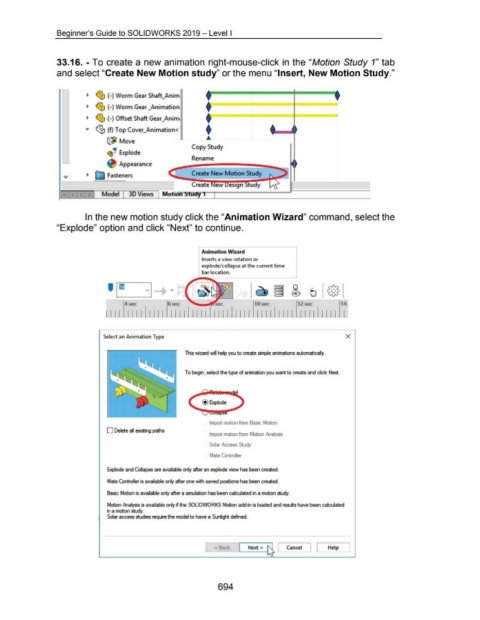
                                    33.16. - To create a new animation right-mouse-click in  the "Motion Study 1" tab


                                    and select "Create New Motion study" or the menu "Insert, New Motion Study."


                                                       •  ~ (-) Worm Gear Shaft_Anim


                                                       •  ~ (-) Worm Gear _Animation                                              t


                                                       •  <:;b  (-) Offset Shaft Gear_Anim.                                       t===========!============ ===========l


                                                                                                                                  t
                                                      ...  <g,  (f) Top Cover_Animation<'

                                                                    ~ Move                                                        .A

                                                                                                                         Copy Study
                                                                        ~
                                                                    (!··  Explode
                                                                                                                         Rename
                                                                           Appearance


                                                                    Fasteners                                            Cr~at~ N~ Motion Study

                                                                                                                         Create


                                                                 Model            30 Views             Motion Study 1
                                                                                                                                  ~--------------------------------------


                                                      In the new motion study click the "Animation Wizard" command, select the


                                    "Explode" option and click "Next" to continue.


                                                                                                                               Animat ion Wizard
                                                                                                                               Inserts a view rotation or

                                                                                                                               explode/collapse at the current time

                                                                                                                               bar location.


                                                                                                                                                                                        0

                                                                                                                                                                                       ®


                                                                               4 sec                      6 sec                                                 1 0 sec                    12 sec                     14

                                                                   I I I I  I I I I II I I I  I I I I                                               I I I I  I I I I  I I I I  I I I I  I I I I  I


                                                                  Select an Animation Type                                                                                                                               X


                                                                                                                     This wizard will help you to create simple animations automatically.


                                                                                                                     To begin. select the type of animation you want to create and dick Next.


                                                                                                                               @ Explode


                                                                                                                                    Import motion from Bas1c Motion


                                                                    D Delete all existing paths
                                                                                                                                    Import motion from Motion hla~rsis


                                                                                                                                    Solar fv:.cess Study


                                                                                                                                    Mate Controller


                                                                    Explode and Collapse are available only after an explode view has been created.


                                                                    Mate Controller is available only after one with saved positions has been created.


                                                                    Basic Motion is available only after a simulation has been calculated in a motion study.


                                                                    Motion hlalysis is available only if the SOLIDWORKS Motion add~n is loaded and resuhs have been calculated
                                                                    in a motion study.
                                                                    Solar access studies require the model to have a Sunlight defined.


                                                                                                                                                            Next >  ~  Cancel  J [  Help  J
                                                                                                                                       < Back


                                                                                                                                         694

