


Page 476 - Excel 2007 Bible
P. 476
27_044039 ch21.qxp  11/21/06  11:12 AM  Page 433
                                                                             Visualizing Data Using Conditional Formatting
                                             Displaying only one icon
                                             In some cases, you may want to display only one icon from an icon set. Excel doesn’t provide this option
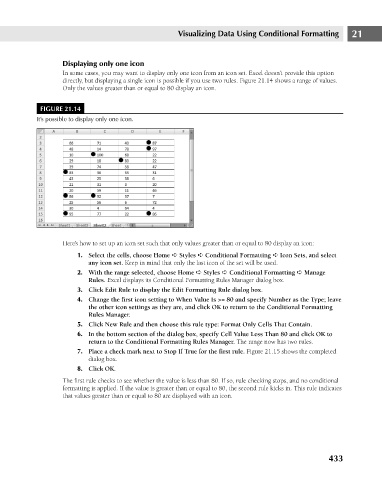
                                             directly, but displaying a single icon is possible if you use two rules. Figure 21.14 shows a range of values.
                                             Only the values greater than or equal to 80 display an icon.
                                      FIGURE 21.14
                                     It’s possible to display only one icon.
                                             Here’s how to set up an icon set such that only values greater than or equal to 80 display an icon:  21
                                                 1. Select the cells, choose Home ➪ Styles ➪ Conditional Formatting ➪ Icon Sets, and select
                                                    any icon set. Keep in mind that only the last icon of the set will be used.
                                                 2. With the range selected, choose Home ➪ Styles ➪ Conditional Formatting ➪ Manage
                                                    Rules. Excel displays its Conditional Formatting Rules Manager dialog box.
                                                 3. Click Edit Rule to display the Edit Formatting Rule dialog box.
                                                 4. Change the first icon setting to When Value Is >= 80 and specify Number as the Type; leave
                                                    the other icon settings as they are, and click OK to return to the Conditional Formatting
                                                    Rules Manager.
                                                 5. Click New Rule and then choose this rule type: Format Only Cells That Contain.
                                                 6. In the bottom section of the dialog box, specify Cell Value Less Than 80 and click OK to
                                                    return to the Conditional Formatting Rules Manager. The range now has two rules.
                                                 7. Place a check mark next to Stop If True for the first rule. Figure 21.15 shows the completed
                                                    dialog box.
                                                 8. Click OK.
                                             The first rule checks to see whether the value is less than 80. If so, rule checking stops, and no conditional
                                             formatting is applied. If the value is greater than or equal to 80, the second rule kicks in. This rule indicates
                                             that values greater than or equal to 80 are displayed with an icon.


                                                                                                                      433

