


Page 206 - Finite Element Analysis with ANSYS Workbench
P. 206
10.3 Academic Example 197
Settings. Select the Temperature tab on the bottom menu
bar, then select Edge icon. Move the cursor to the top edge
and click at it, the top edge will become green. Click
Apply button next to the Geometry button, and change
temperature value next to the Magnitude button to 95, and
hit Enter.
The problem is now ready to solve for temperature solution.
Click the Solution tab and under Steady-State Thermal
and click the Solve icon (the icon with yellow lightning on
the top menu bar).
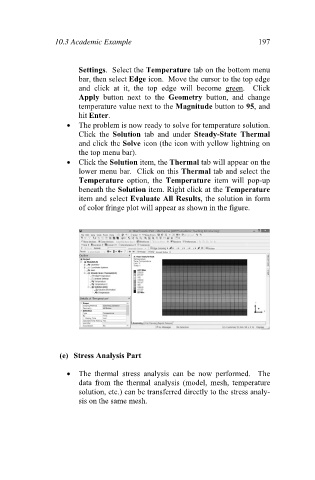
Click the Solution item, the Thermal tab will appear on the
lower menu bar. Click on this Thermal tab and select the
Temperature option, the Temperature item will pop-up
beneath the Solution item. Right click at the Temperature
item and select Evaluate All Results, the solution in form
of color fringe plot will appear as shown in the figure.
(e) Stress Analysis Part
The thermal stress analysis can be now performed. The
data from the thermal analysis (model, mesh, temperature
solution, etc.) can be transferred directly to the stress analy-
sis on the same mesh.

