


Page 134 - Make Your Own PCBs with EAGLE from Schematic Designs to Finished Boards
P. 134
Before we can add the ground plane, we need to “rip up” the tracks that have just been laid. You
  can do this either by using Undo or you can select the Ripup command, select the Group command,
  drag over the whole board, and then from the right-click menu select “Group Ripup.”

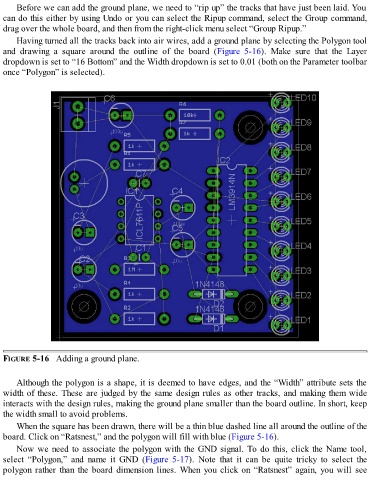
      Having turned all the tracks back into air wires, add a ground plane by selecting the Polygon tool
  and  drawing  a  square  around  the  outline  of  the  board  (Figure  5-16).  Make  sure  that  the  Layer
  dropdown is set to “16 Bottom” and the Width dropdown is set to 0.01 (both on the Parameter toolbar
  once “Polygon” is selected).


  FIGURE 5-16   Adding a ground plane.


      Although the polygon is a shape, it is deemed to have edges, and the “Width” attribute sets the
  width of these. These are judged by the same design rules as other tracks, and making them wide
  interacts with the design rules, making the ground plane smaller than the board outline. In short, keep

  the width small to avoid problems.
      When the square has been drawn, there will be a thin blue dashed line all around the outline of the
  board. Click on “Ratsnest,” and the polygon will fill with blue (Figure 5-16).

      Now we need to associate the polygon with the GND signal. To do this, click the Name tool,
  select  “Polygon,”  and  name  it  GND  (Figure 5-17).  Note  that  it  can  be  quite  tricky  to  select  the
  polygon rather than the board dimension lines. When you click on “Ratsnest” again, you will see

