


Page 208 - Mastering SolidWorks
P. 208
|
                                                           tUtoRial: applying VisUalization techniqUes    177


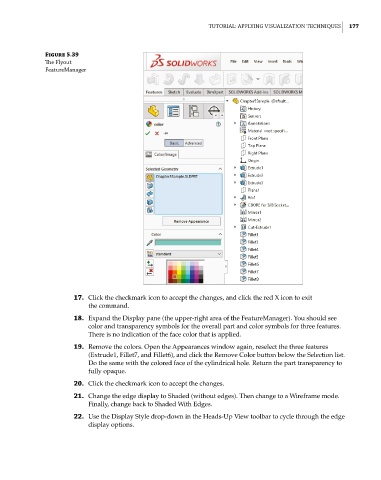
              Figure 5.39
              The Flyout
              FeatureManager


                      17.  Click the checkmark icon to accept the changes, and click the red X icon to exit
                          the command.
                      18.  Expand the Display pane (the upper-right area of the FeatureManager). You should see
                          color and transparency symbols for the overall part and color symbols for three features.
                          There is no indication of the face color that is applied.

                      19.  Remove the colors. Open the Appearances window again, reselect the three features
                          (Extrude1, Fillet7, and Fillet6), and click the Remove Color button below the Selection list.
                          Do the same with the colored face of the cylindrical hole. Return the part transparency to
                          fully opaque.
                      20.  Click the checkmark icon to accept the changes.
                      21.  Change the edge display to Shaded (without edges). Then change to a Wireframe mode.
                          Finally, change back to Shaded With Edges.

                      22.  Use the Display Style drop-down in the Heads-Up View toolbar to cycle through the edge
                          display options.

