


Page 221 - Mastering SolidWorks
P. 221
|
        192   CHAPTER 6  GettinG More froM Your SketcheS


                       The Modify Sketch dialog box enables you to perform the following functions:
                       Scale About: The Scaling function in the Modify Sketch tool enables you to scale about either
                       the part origin or the movable origin. The movable origin is shown with a black origin symbol
                       with knobs on the ends of the axes and at the intersection. The movable origin can be moved
                       and even snapped to entities that are internal or external to the sketch.
                       Translate: The Translate function of the Modify Sketch tool enables you to click and drag to
                       move the entire sketch or to select a point and move it to a specific set of coordinates that you
                       enter. If the sketch is dragged onto an external entity and picks up an automatic relation, then
                       a message may appear saying that you can now use Modify Sketch only for rotating the
                       sketch because there is an external relation.
                       Rotate: The Rotate function of the Modify Sketch tool enables you to position the movable
                       origin to act as the center of rotation. You can rotate either by entering a rotation angle or by
                       dragging with the right mouse button to rotate, as indicated by the cursor.
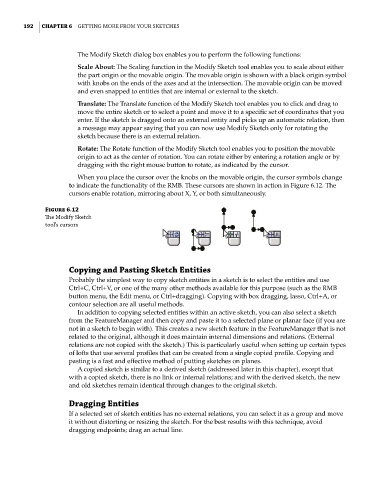
                       When you place the cursor over the knobs on the movable origin, the cursor symbols change
                    to indicate the functionality of the RMB. These cursors are shown in action in Figure 6.12. The
                    cursors enable rotation, mirroring about X, Y, or both simultaneously.

              Figure 6.12
              The Modify Sketch
              tool’s cursors


                    Copying and Pasting Sketch Entities
                    Probably the simplest way to copy sketch entities in a sketch is to select the entities and use
                    Ctrl+C, Ctrl+V, or one of the many other methods available for this purpose (such as the RMB
                    button menu, the Edit menu, or Ctrl+dragging). Copying with box dragging, lasso, Ctrl+A, or
                    contour selection are all useful methods.
                       In addition to copying selected entities within an active sketch, you can also select a sketch
                    from the FeatureManager and then copy and paste it to a selected plane or planar face (if you are
                    not in a sketch to begin with). This creates a new sketch feature in the FeatureManager that is not
                    related to the original, although it does maintain internal dimensions and relations. (External
                    relations are not copied with the sketch.) This is particularly useful when setting up certain types
                    of lofts that use several profiles that can be created from a single copied profile. Copying and
                    pasting is a fast and effective method of putting sketches on planes.
                       A copied sketch is similar to a derived sketch (addressed later in this chapter), except that
                    with a copied sketch, there is no link or internal relations; and with the derived sketch, the new
                    and old sketches remain identical through changes to the original sketch.

                    Dragging Entities
                    If a selected set of sketch entities has no external relations, you can select it as a group and move
                    it without distorting or resizing the sketch. For the best results with this technique, avoid
                    dragging endpoints; drag an actual line.

