


Page 223 - Mastering SolidWorks
P. 223
|
        194   CHAPTER 6  GettinG More froM Your SketcheS


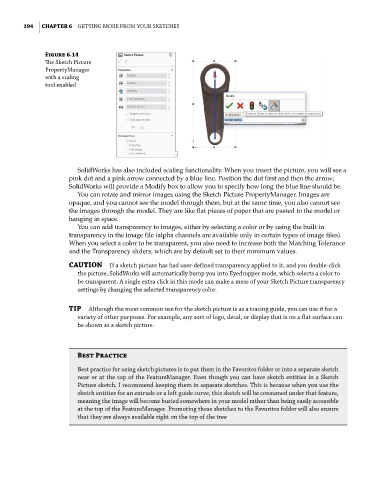
              Figure 6.14
              The Sketch Picture
              PropertyManager
              with a scaling
              tool enabled


                       SolidWorks has also included scaling functionality. When you insert the picture, you will see a
                    pink dot and a pink arrow connected by a blue line. Position the dot first and then the arrow;
                    SolidWorks will provide a Modify box to allow you to specify how long the blue line should be.
                       You can rotate and mirror images using the Sketch Picture PropertyManager. Images are
                    opaque, and you cannot see the model through them, but at the same time, you also cannot see
                    the images through the model. They are like flat pieces of paper that are pasted to the model or
                    hanging in space.
                       You can add transparency to images, either by selecting a color or by using the built-in
                    transparency in the image file (alpha channels are available only in certain types of image files).
                    When you select a color to be transparent, you also need to increase both the Matching Tolerance
                    and the Transparency sliders, which are by default set to their minimum values.
                    CAUTION  if a sketch picture has had user-defined transparency applied to it, and you double-click
                       the picture, SolidWorks will automatically bump you into eyedropper mode, which selects a color to
                       be transparent. a single extra click in this mode can make a mess of your Sketch Picture transparency
                       settings by changing the selected transparency color.

                    TIP  although the most common use for the sketch picture is as a tracing guide, you can use it for a
                       variety of other purposes. for example, any sort of logo, decal, or display that is on a flat surface can
                       be shown as a sketch picture.


                       Best Practice
                       Best practice for using sketch pictures is to put them in the favorites folder or into a separate sketch
                       near or at the top of the featureManager. even though you can have sketch entities in a Sketch
                       Picture sketch, i recommend keeping them in separate sketches. this is because when you use the
                       sketch entities for an extrude or a loft guide curve, this sketch will be consumed under that feature,
                       meaning the image will become buried somewhere in your model rather than being easily accessible
                       at the top of the featureManager. Promoting these sketches to the favorites folder will also ensure
                       that they are always available right on the top of the tree

