


Page 528 - Microsoft Office Excel 2003 Programming Inside Out
P. 528
Microsoft Office Excel 2003 Programming Inside Out
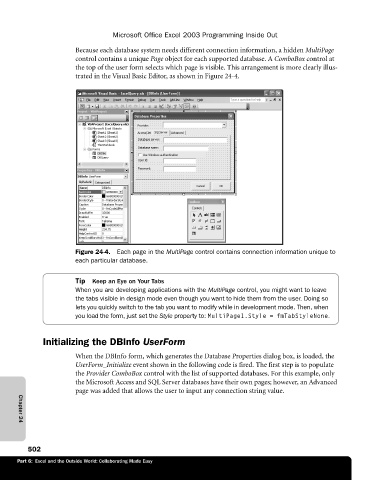
Because each database system needs different connection information, a hidden MultiPage
control contains a unique Page object for each supported database. A ComboBox control at
the top of the user form selects which page is visible. This arrangement is more clearly illus
trated in the Visual Basic Editor, as shown in Figure 24-4.
Figure 24-4. Each page in the MultiPage control contains connection information unique to
each particular database.
Tip Keep an Eye on Your Tabs
When you are developing applications with the MultiPage control, you might want to leave
the tabs visible in design mode even though you want to hide them from the user. Doing so
lets you quickly switch to the tab you want to modify while in development mode. Then, when
you load the form, just set the Style property to: MultiPage1.Style = fmTabStyleNone.
Initializing the DBInfo UserForm
When the DBInfo form, which generates the Database Properties dialog box, is loaded, the
UserForm_Initialize event shown in the following code is fired. The first step is to populate
the Provider ComboBox control with the list of supported databases. For this example, only
the Microsoft Access and SQL Server databases have their own pages; however, an Advanced
page was added that allows the user to input any connection string value.
Chapter 24
502
Part 6: Excel and the Outside World: Collaborating Made Easy

