


Page 531 - Microsoft Office Excel 2003 Programming Inside Out
P. 531
Excel Query Program


                             Tip  I Am Me
                             UserForm modules are like regular class modules, so you can refer to the current instance
                             of the object by using the keyword Me. This can be extremely useful with some statements,
                             such as the Unload statement, where you have to supply an object reference to the UserForm
                             object you wish to unload.

                             When the user clicks the Cancel button, the CommandButton2 event is called. Because the
                             user has chosen not to change the connection information stored in the registry, the only step
                             necessary is to unload the current form.

                             Private Sub CommandButton2_Click()
                             Unload Me

                             End Sub

                    Editing a Query

                             The query values are stored in the ComboBox control on the Excel2k3 VBA Query command
                             bar. Each query has its own entry, which can be selected by choosing the appropriate entry
                             from the drop-down list. Pressing the Edit Query button on the command bar loads the
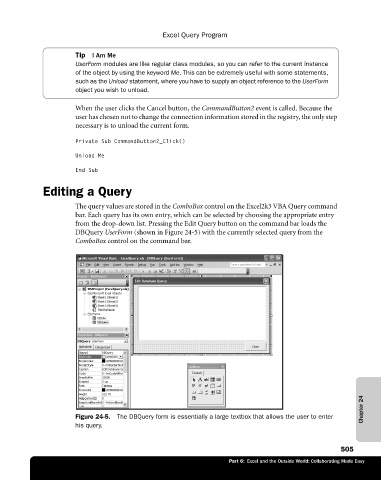
                             DBQuery UserForm (shown in Figure 24-5) with the currently selected query from the
                             ComboBox control on the command bar.


                                                                                                             Chapter 24

                             Figure 24-5.  The DBQuery form is essentially a large textbox that allows the user to enter
                             his query.


                                                                                                       505
                                                                        Part 6:  Excel and the Outside World: Collaborating Made Easy

