


Page 538 - 02. Subyek Computer Aided Design - Beginner’s Guide to SOLIDWORKS 2019- Level 1 by Alejandro Reyes
P. 538
Assembly Modeling


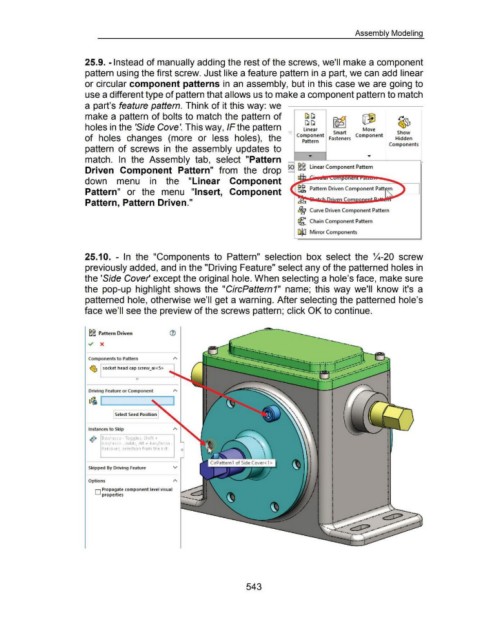
                                                      25.9. -Instead of manually adding the rest of the screws, we'll make a component


                                                      pattern using the first screw. Just like a feature pattern in a part, we can add linear


                                                      or circular component patterns in  an assembly, but in this case we are going to


                                                      use a different type of pattern that allows us to make a component pattern to match


                                                      a part's feature pattern. Think of it this way: we


                                                      make a pattern of bolts to match the pattern of                                                                                                            ~


                                                      holes in the 'Side Cove'. This way, IF the pattern                                                                             ,         Linear            Smart              Move

                                                                                                                                                                                                                                                         Show
                                                      of  holes  changes  (more  or  less  holes),  the                                                                                    Component  Fasteners  Component                              Hidden
                                                                                                                                                                                              Pattern
                                                                                                                                                                                                                                                    Components
                                                      pattern  of screws  in  the  assembly  updates  to


                                                      match.  In  the  Assembly  tab,  select  "Pattern                                                                                           ...        -


                                                      Driven  Component  Pattern"  from  the  drop  so  ~~ Linear Component Pattern


                                                      down  menu  in  the  "Linear  Component


                                                      Pattern"  or  the  menu  "Insert,  Component                                                                                                                                                          D


                                                      Pattern, Pattern Driven."                                                                                                            C!C!

                                                                                                                                                                                           §a  Curve Driven Component Pattern


                                                                                                                                                                                           ~ Chain Component Pattern


                                                                                                                                                                                           GJiiJ  Mirror Components


                                                      25.1 0.  - In  the  "Components  to  Pattern"  selection  box  select  the  %-20  screw


                                                      previously added, and in the "Driving Feature" select any of the patterned holes in


                                                      the 'Side Cover' except the original hole. When selecting a hole's face, make sure


                                                      the  pop-up  highlight  shows  the  "CircPattern1"  name;  this  way we'll  know  it's  a


                                                      patterned hole, otherwise we'll get a warning. After selecting the patterned hole's


                                                      face we'll  see the preview of the screws pattern; click OK to continue.


                                                         ~~ Pattern Driven                                 ®


                                                        Components t o Pattern

                                                         ~ socket head cap screw_ai <S>


                                                        Driving Feature or Component


                                                         ~ '"-----__;:

                                                                         Select Seed Position


                                                        Instances to Skip


                                                          o!•  BoX/lasso- Toggles, Shift+
                                                         0
                                                          0
                                                                boX/lasso- Adds, Alt + boX/lasso-
                                                                Removes,  selection from the list.


                                                        Skipped By Driving Feature                           v


                                                        Options


                                                            D Propagate component level visual
                                                                 properties


                                                                                                                                                           543

