Page 651 - 02. Subyek Computer Aided Design - Beginner’s Guide to SOLIDWORKS 2019- Level 1 by Alejandro Reyes
P. 651
Beginner's Guide to SOLIDWORKS 2019- Level I


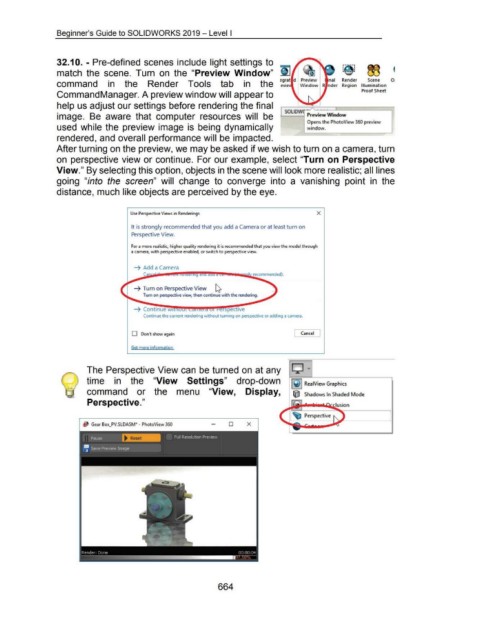
                                    32.1 0. - Pre-defined scenes include light settings to  ~  ~

                                                                                                                                                                                           1
                                    match  the  scene.  Turn  on  the  "Preview Window"  ~  ~

                                    command  in  the  Render  Tools  tab  in  the  ee~~:t  d  :;ie;~~:                                                                                                                 Render          Scene
                                                                                                                                                                                                                       Region  Illumination

                                                                                                                                                                                                                                   Proof Sheet
                                    Command Manager. A preview window will appear to


                                                                                                                                                                                   50
                                    help us adjust our settings before rendering the final  r--L-,o~wr~-~-"'--~.-.  _ ____....,.. ---------,

                                    image.  Be  aware  that  computer  resources  will  be                                                                                                -      Prev•ewW•ndow

                                                                                                                                                                                                 Opens the PhotoView 360 preview
                                    used while the preview image  is  being dynamically                                                                                                          window.


                                    rendered, and overall performance will be impacted.


                                    After turning on the preview, we may be asked if we wish to turn on a camera, turn


                                    on  perspective view or continue.  For our example,  select "Turn on Perspective


                                    View." By selecting this option, objects in the scene will look more realistic; all lines


                                    going  "into  the  screen"  will  change  to  converge  into  a  vanishing  point  in  the


                                    distance, much like objects are perceived by the eye.


                                                                                   Use Perspective Views in Renderings                                                                                 X


                                                                                   It is strongly recommended that you add a Camera or at least turn on

                                                                                   Perspective View.


                                                                                   For a more realistic, higher quality rendering it is recommended that you view the model through
                                                                                   a camera, with perspective enabled, or switch to perspective view.


                                                                                     ~ Add a Camera

                                                                                           Ca


                                                                                     ~ Turn on Perspective View                         ~

                                                                                          Turn on perspective view, then continue with the rendering.


                                                                                     ~ Continue WI                                           spective

                                                                                           Continue the current rendering without turning on perspective or adding a camera.


                                                                                   0  Don't show again                                                                                       Cancel


                                                                                   Get more information


                                                       The Perspective View can be turned on at any  0  ...


                                                       time  in  the  "View  Settings"  drop-down
                                                                                                                                                                                       I Q I ReaiView Graphics
                                                       command  or  the  menu  "View,  Display,                                                                                         ~ Shadows In Shaded Mode


                                                       Perspective."


                                                                                                                                                                                               Perspective

                                                          Gear Box_PV.SLDASM" - PhotoView 360                                                   D          X


                                                 •.


                                                    Perrdet: [•one
                                                                                                                                                      00:00:04
                                                                                                                                                    -~---
                                                                                                                                                    •.
                                                                                                                                                        ,
                                                                                                                                                          I


                                                                                                                                         664
   646   647   648   649   650   651   652   653   654   655   656