


Page 654 - 02. Subyek Computer Aided Design - Beginner’s Guide to SOLIDWORKS 2019- Level 1 by Alejandro Reyes
P. 654
Animation and Rendering


                                                                       Generally, when  creating  a final  rendered  image,  start with  a small  image


                                                                       size, turn off the advanced lighting effects which add rendering time (Bloom,


                                                                       contour/cartoon  rendering, Direct caustics and  Output ambient occlusion)


                                                      and lower the final render quality to evaluate the resulting image, change positions,


                                                      lights,  colors,  environment,  etc.  before  committing  to  a  time-consuming  high-


                                                      quality final render.


                                                                       The  PhotoView  360  rendering  engine  takes  full  advantage  of multi-core


                                                                       processors;  therefore,  the  faster  the  processor  speed  and  the  more


                                                                       processor cores available, rendered images will complete faster.


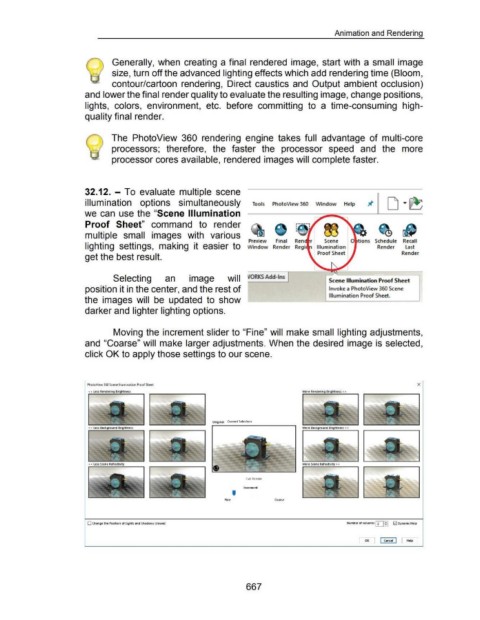
                                                      32.12.  - To  evaluate  multiple  scene


                                                      illumination  options  simultaneously                                                                    Tools       PhotoView 360  Window                        Help


                                                      we can  use the "Scene Illumination


                                                      Proof  Sheet"  command  to  render


                                                      multiple  small  images  with  various
                                                                                                                                                            Preview          Final                          Scene                           Schedule  Recall

                                                      lighting  settings,  making  it  easier  to  Window  Render  Regi                                                                                Illumination                          Render            last
                                                                                                                                                                                                        Proof Sheet                                         Render
                                                      get the best result.


                                                                        Selecting                       an             image                   will                                                            Scene Illumination Proof Sheet


                                                      position it in the center, and the rest of                                                                                                               Invoke a PhotoView 360 Scene

                                                                                                                                                                                                               Illumination Proof Sheet.
                                                      the  images  will  be  updated  to  show


                                                      darker and lighter lighting options.


                                                                        Moving the increment slider to "Fine" will  make small lighting adjustments,


                                                      and "Coarse" will  make larger adjustments. When the desired image is selected,


                                                      click OK to apply those settings to our scene.


                                                       PhotoView 360 Scene Illumination Proof Sheet                                                                                                                                                                   X

                                                        < < ltss Rtnd                                                                                                                         Mort                     >>


                                                                                                                                      Original  Current Selection

                                                        < < ltss Background Brightntss                                                                                                        Mort Background Brightntss > >


                                                        < < ltss Sctnt Rtfltctivity                                                                                                           Mort Sctnt Rtlltctivity > >


                                                                                                                                                           Full Render

                                                                                                                                                         Increment
                                                                                                                                                  '

                                                                                                                                             Fine                            Coarse


                                                        0 Changt tht Position of lights and Shadows (slowt~                                                                                                               Number of columns 12  lt;i'  0  Dynamic Htlp


                                                                                                                                                                                                                                     OK        I canctl  I  ["Ht lp


                                                                                                                                                           667

