


Page 666 - 02. Subyek Computer Aided Design - Beginner’s Guide to SOLIDWORKS 2019- Level 1 by Alejandro Reyes
P. 666
Animation and Rendering
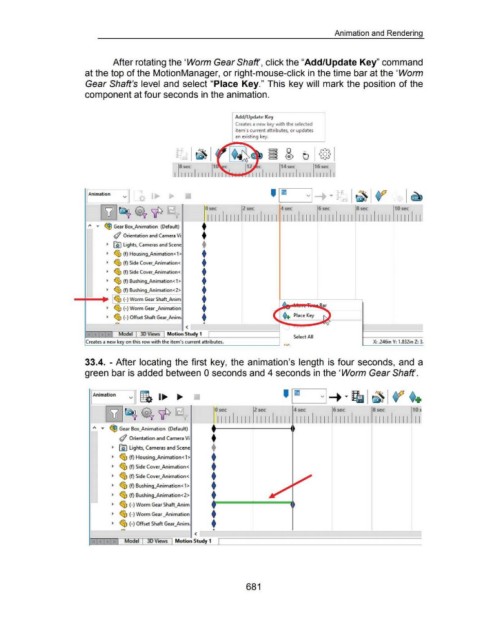
After rotating the 'Worm Gear Shaft', click the "Add/Update Key" command
at the top of the Motion Manager, or right-mouse-click in the time bar at the 'Worm
Gear Shaft's level and select "Place Key." This key will mark the position of the
component at four seconds in the animation.
Add/ Update Key
Creates a new key with the selected
item's current attributes, or updates
an existing key.
I Animation ' I ~~
v I~ ~ VI · ~ ~ ~
I
lli]~ ~ 'IP Osee 2 sec 4sec 6sec 8sec 10sec
I I I I 1111 1111 1111 1111 1111 1111 1111 111111111 1111 II
t
~ Gear Box_Animation (Default)
A •
t
(/ Orientation and Camera Vi
.. ~ Lights, Cameras and Scene t
.. ~ (f) Housing_Animation<1> t
.. ~ (f) Side Cover_Animation< t
.. ~ (f) Side Cover_Animation< . t
.. ~ (f) Bushing_Animation<1> t
.. ~ (f) Bushing_Animation<2> t
~~ (-)Worm Gear Shaft_Anim t
.. ~ (-) Worm Gear _Animation t
.. ~ (-)Offset Shaft Gear_Anim; t
.-. ...
<
Model 3D Views Motion Study 1
Select All
Creates a new key on this row with the item's current attribute.s. X: .246in Y: 1.&32in Z: 3.
1.....----~--------------------J ··a.•.
33.4. - After locating the first key, the animation's length is four seconds, and a
green bar is added between 0 seconds and 4 seconds in the 'Worm Gear Shaft'.
~mation v g. 1.... ....
~~ ~'IP - : I I I I I I I I I I I I I I I I I I I I I I I I I I I I I I I I I I I I I I I I I I
--~----~---
6sec
4sec
0 sec
8sec
10
2 sec
A • ~ Gear Box_Animation (Default)
(/ Orientation and Camera Vi +
._ @) Lights, Cameras and Scene +
+
._ ~ (f) Housing_Animation < 1 >
+
._ ~ (f) Side Cover_Animation<
+
._ ~ (f) Side Cover_Animation<.
+
._ ~ (f) Bushing_Animation<1 >
+
.. ~ (f) Bushing_Animation<2>
._ ~ (-)WormGearShaft_Anim r====~====l
t
._ ~ (-)Worm Gear _Animation
+
.. ~ (-) Offset Shaft Gear_Anim;
-~ & ----~----·-----~---~----~~
<
Model 3D Views Motion Study 1
681

