


Page 369 - Between One and Many The Art and Science of Public Speaking
P. 369
336                   Part 3  Putting Theory Into Practice


                                        Appropriate “Build” Effects (Animation)

                                        Recall that when you use visual aids such as overhead transparencies, we rec-
                                        ommended that you reveal your points only as you are ready to talk about them.
                                        That way your next point will not distract your audience and you can control
                                        the pace of their focus. The same applies to PowerPoint slides. Unless there is
                                        a strong reason to do otherwise (such as a preview slide that lists all the main
                                        points to be covered in the speech), be sure to animate your slide so that each
                                        bulleted point is revealed as you are ready to discuss it. Furthermore, be sure to
                                        use animation effects that are simple and fast. For example, avoid slow-moving
                                        animations such as spiral, crawl, and swivel and use quicker ones such as dis-
                                        solve, appear, and peek. Unless they are critical to your presentation, be sure to
                                        turn off sound effects that can annoy your audience and your instructor.

                                        Visual Balance

                                        It is important that you strive for visual balance. This means avoiding a lot of
                                        dead or empty space and also not having a lopsided slide. Also, position items
                                        for legibility and clarity. Depending on the confi guration of the room and lines
                                        of sight, words near the bottom of the slide are sometimes hard to see because
                                        the heads of those in front of them block people’s views. Thus, don’t cram im-
                                        portant information along the bottom of slides. It is better to use a new slide if
                                        everything won’t fi t on one.

                   Tips and Tactics
                                                                                             PowerPoint Keys

                                        •   Keep it simple: less is usually best. The goal of all visual aids, including Power-
                                         Point, is to organize, illustrate, simplify, and complement your speech. If
                                         it starts to supplant or overshadow your presentation, it has not served its
                                         purpose.
                                        •   Be sure of your purpose. Always ask yourself, how does the slide make your
                      www.mhhe.com/brydon6
                                           presentation better? If it doesn’t, omit it.
                  To view a video of Shelly Lee   •   Rehearse. We never use Power-
                  Spratt’s speech and her use
                  of PowerPoint, click on the   Point slides cold. No matter
                  Speech Coach link on our   how well we think we have
                  Online Learning Center Web   prepared them, we are often
                  site, and go to Segment 12.2.
                                         surprised when we practice
                                         to discover that the anima-
                                         tion didn’t work as planned, a
                                         hyperlink in the slide is dead,
                                         or that what looked good on
                                         our computer screen is totally
                                         invisible on the classroom
                                         screen.
                                        •   Have a backup! One of the con-
                                         stant complaints we get from
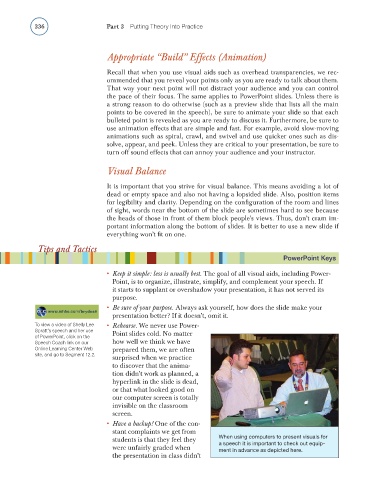
                                         students is that they feel they   When using computers to present visuals for
                                                                         a speech it is important to check out equip-
                                         were unfairly graded when       ment in advance as depicted here.
                                         the presentation in class didn’t

