


Page 533 - Subyek Computer Aided Design - [David Planchard] Engineering Design with SOLIDWORKS
P. 533
Engineering Design with SOLIDWORKS® 2018 Swept, Lofted and Additional Features
I Activity: HOUSING Part - Mirror Feature
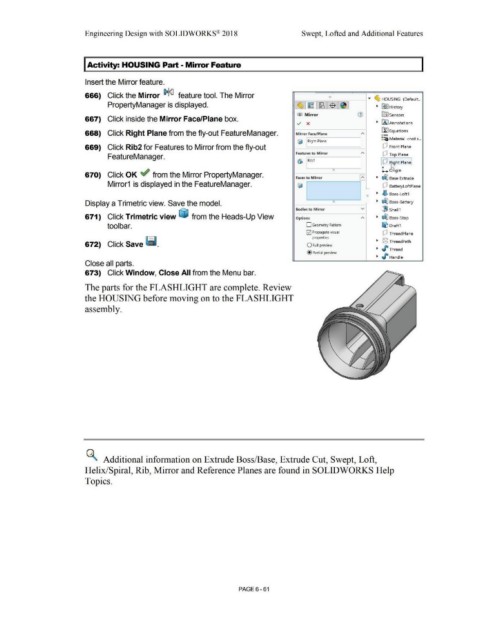
Insert the Mirror feature.
666) Click the Mirror !?l<J feature tool. The Mirror
.... ~ HOUSING (Default ...
PropertyManager is displayed. • ~ I History
l:a~ Mirror fal sensors
667) Click inside the Mirror Face/Plane box.
../ x • IA I Annotations
ll:J Equations
668) Click Right Plane from the fly-out FeatureManager. Mirror Face/Plane o-
::::a Material <nots ...
Cj [ Right Pia ne
669) Click Rib2 for Features to Mirror from the fly-out dJ Front Plane
Features to Mirror dJ Top Plane
FeatureManager.
I dJ ~ht Planel
L. Origin
670) Click OK ~ from the Mirror PropertyManager. Faces to Mirror • ~ Base Extrude
Mirror1 is displayed in the FeatureManager.
- dJ BatteryloftPlane
~ • ~ Boss-Loft1
Display a Trimetric view. Save the model. - • ~ Boss-Battery
Bodies to Mirror v i1'J Shell1
671) Click Tri metric view ~ from the Heads-Up View Options • ~ Boss-Stop
tool bar. D Geometry Pattern ~ Draft1
E2I Propagate visual
dJ ThreadPlane
properties
672) Click Save ~ . O Full preview • ~ ThreadPath
• ./" Thread
@ Partial preview
• I Handle
Close all parts.
673) Click Window, Close All from the Menu bar.
The parts for the FLASHLIGHT are complete. Review
the HOUSING before moving on to the FLASHLIGHT
assembly.
Cl Additional information on Extrude Boss/Base, Extrude Cut, Swept, Loft,
Helix/Spiral, Rib, Mirror and Reference Planes are found in SOLIDWORKS Help
Topics.
PAGE 6-61

