


Page 122 - Make Your Own PCBs with EAGLE from Schematic Designs to Finished Boards
P. 122
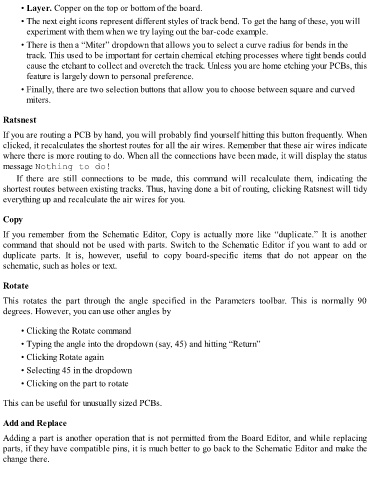
• Layer. Copper on the top or bottom of the board.

        • The next eight icons represent different styles of track bend. To get the hang of these, you will
          experiment with them when we try laying out the bar-code example.
        • There is then a “Miter” dropdown that allows you to select a curve radius for bends in the

          track. This used to be important for certain chemical etching processes where tight bends could
          cause the etchant to collect and overetch the track. Unless you are home etching your PCBs, this
          feature is largely down to personal preference.

        • Finally, there are two selection buttons that allow you to choose between square and curved
          miters.


  Ratsnest

  If you are routing a PCB by hand, you will probably find yourself hitting this button frequently. When
  clicked, it recalculates the shortest routes for all the air wires. Remember that these air wires indicate
  where there is more routing to do. When all the connections have been made, it will display the status

  message Nothing to do!
      If  there  are  still  connections  to  be  made,  this  command  will  recalculate  them,  indicating  the
  shortest routes between existing tracks. Thus, having done a bit of routing, clicking Ratsnest will tidy
  everything up and recalculate the air wires for you.


  Copy

  If  you  remember  from  the  Schematic  Editor,  Copy  is  actually  more  like  “duplicate.”  It  is  another
  command that should not be used with parts. Switch to the Schematic Editor if you want to add or
  duplicate  parts.  It  is,  however,  useful  to  copy  board-specific  items  that  do  not  appear  on  the
  schematic, such as holes or text.


  Rotate

  This  rotates  the  part  through  the  angle  specified  in  the  Parameters  toolbar.  This  is  normally  90

  degrees. However, you can use other angles by


        • Clicking the Rotate command
        • Typing the angle into the dropdown (say, 45) and hitting “Return”

        • Clicking Rotate again

        • Selecting 45 in the dropdown
        • Clicking on the part to rotate


  This can be useful for unusually sized PCBs.


  Add and Replace

  Adding a part is another operation that is not permitted from the Board Editor, and while replacing
  parts, if they have compatible pins, it is much better to go back to the Schematic Editor and make the
  change there.

