


Page 588 - 02. Subyek Computer Aided Design - Beginner’s Guide to SOLIDWORKS 2019- Level 1 by Alejandro Reyes
P. 588
Beginner's Guide to SOLIDWORKS 2019- Level I


                                    29.2. -There  are  two  ways  to  add  explode  steps:  the  first  option  is  to  select  a


                                    component and  drag  the tip  of a  direction  axis to  the  desired  explode  distance


                                    using the on-screen ruler as a guide, and the second option is to manually define


                                    the specific explosion  parameters for direction and  rotation of a component. The


                                    main difference is we can only explode and rotate a component at the same time


                                    using the second option.


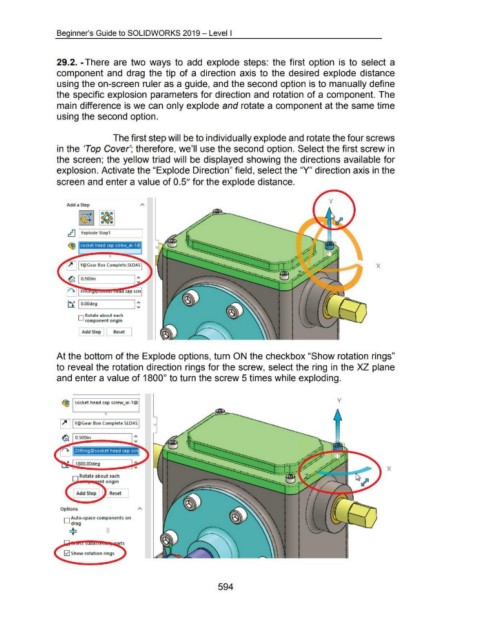
                                                                        The first step will be to individually explode and rotate the four screws


                                    in the 'Top Cover'; therefore, we'll use the second option. Select the first screw in


                                    the screen; the yellow triad will  be displayed showing the directions available for


                                    explosion. Activate the "Explode Direction" field, select the "Y" direction axis in the


                                    screen and enter a value of 0.5" for the explode distance.


                                           Add a Step


                                           rtJ  I Explode Step1


                                                   socket head cap screw_ai-1@


                                           ~  Y@Gear Box Complete.SLDAS                                                                                                                                                                     X


                                           tf I O.OOdeg                              I ~


                                                  D Rotate about each
                                                      component origin


                                                    Add Step            Reset


                                    At the bottom of the Explode options, turn ON the checkbox "Show rotation rings"


                                    to reveal the rotation direction rings for the screw, select the ring  in the XZ plane


                                    and enter a value of 1800° to turn the screw 5 times while exploding.


                                                                                                                                                                                                                    y
                                        ~ socket head cap screw_ai-1@


                                                                  ()
                                       ~ I Y@Gear Box Complete.SLDAS I


                                       ~ O.SOOin


                                                ZXRing@socket head cap scr


                                                1800.00deg
                                                                                                                                                                                                                                                   X

                                                   Rotate about each


                                                                     Reset


                                       Options


                                         D Auto-space components on
                                             drag
                                            ...;L
                                            ,.-


                                                                                                                                         594

