Page 702 - 02. Subyek Computer Aided Design - Beginner’s Guide to SOLIDWORKS 2019- Level 1 by Alejandro Reyes
P. 702
Analysis: SimulationXpress


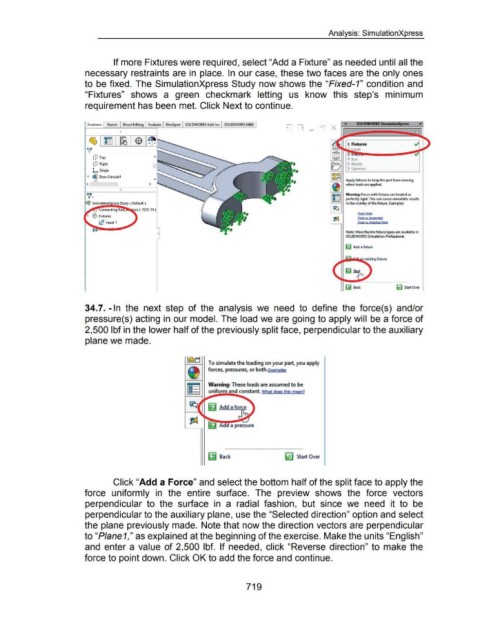
                                                                        If more Fixtures were required, select "Add a Fixture" as needed until all the


                                                      necessary restraints are in  place.  In our case, these two faces are the only ones


                                                      to be fixed.  The SimulationXpress Study now shows the "Fixed-1" condition and


                                                      "Fixtures"  shows  a  green  checkmark  letting  us  know  this  step's  minimum


                                                      requirement has been met. Click Next to continue.


                                                                            0


                                                           dJ  Top

                                                           dJ  Right
                                                           L  Origin

                                                        ~  ~ Boss-Extrudel
                                                                                                                                                                                                               1----1  Apply fixtures to keep the part from moving
                                                            ""'
                                                       <                                      >                                                                                                                          when loads are applied.
                                                                            0
                                                                                                                                                                                                                 ~ Warning: Faces with fixtures are treated as
                                                                                                                                                                                                                 ~ perfectly rigid. This can cause unrealistic results
                                                                                                                                                                                                                         in the vicinity of the fixture. Examples:


                                                                                                                                                                                                                                 F'oced Holes
                                                                                                                                                                                                                                 F'IXecf l/S, Syp!!9!tecf
                                                                                                                                                                                                                                 F'oced vs. AttKN<I  P~ns


                                                                                                                                                                                                                         Note: More flexible fixture types are available in
                                                                                                                                                                                                                         SOLIDWORKS Simulation Professional.


                                                                                                                                                                                                                         ~ Add a fixture


                                                                                                                                                                                                                         Gj Back                         lij Start Over


                                                      34.7. -In  the  next  step  of  the  analysis  we  need  to  define  the  force( s)  and/or


                                                      pressure(s) acting in our model. The load we are going to apply will  be a force of


                                                      2,500 lbf in the lower half of the previously split face, perpendicular to the auxiliary


                                                      plane we made.


                                                                                                                                   To simulate the loading on your part. you apply

                                                                                                                                   forces, pressures, or both.Examples


                                                                                                                                   Warning: These loads are assumed to be
                                                                                                                                   uniform and constant. What does this mean?


                                                                                                                                   ~ Back                                          ~ Start Over


                                                                        Click "Add a Force" and select the bottom half of the split face to apply the


                                                      force  uniformly  in  the  entire  surface.  The  preview  shows  the  force  vectors


                                                      perpendicular  to  the  surface  in  a  radial  fashion,  but  since  we  need  it  to  be


                                                      perpendicular to the auxiliary plane, use the "Selected direction" option and select


                                                      the plane previously made. Note that now the direction vectors are perpendicular


                                                      to "Piane1," as explained at the beginning of the exercise. Make the units "English"


                                                      and  enter a  value  of 2,500  lbf.  If needed,  click "Reverse  direction" to  make the


                                                      force to point down. Click OK to add the force and continue.


                                                                                                                                                           719
   697   698   699   700   701   702   703   704   705   706   707