Page 540 - Subyek Computer Aided Design - [David Planchard] Engineering Design with SOLIDWORKS
P. 540
Swept, Lofted and Additional Features                                                                                                                      Engineering Design with SOLIDWORKS® 2018


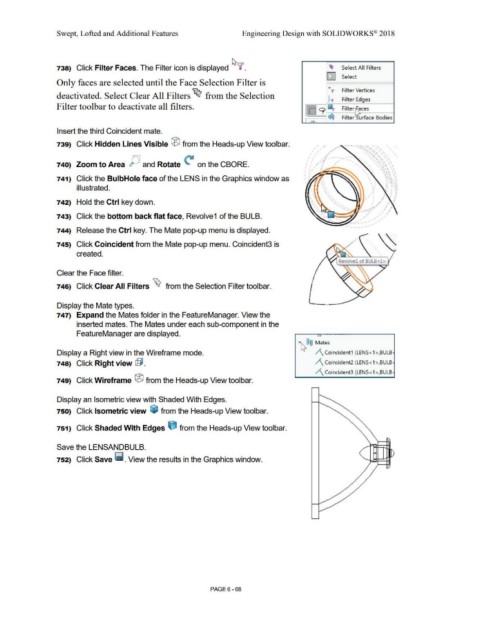
                                                738)  Click Filter Faces. The Filter icon is displayed ~Y.                                                                                                                                                                         ~  Select All Filters


                                                                                                                                                                                                                                                                                 [fil  Select
                                                Only faces are selected until the Face Selection Filter is

                                                                                                                                                                                                                                                                                   •
                                                                                                                                                                                                                                                                                     y        Filter Vertices
                                                deactivated. Select Clear All Filters~ from the Selection                                                                                                                                                                          1,.        Filter Edges


                                                Filter toolbar to deactivate all filters.                                                                                                                                                                          ......  9      Iii,        Filter '\aces
                                                                                                                                                                                                                                                                        •
                                                                                                                                                                                                                                                                   •
                                                                                                                                                                                                                                                                   •
                                                                                                                                                                                                                                                                        •
                                                                                                                                                                                                                                                                  ......
                                                                                                                                                                                                                                                                   •
                                                                                                                                                                                                                                                                        •
                                                                                                                                                                                                                                                                   •
                                                                                                                                                                                                                                                                                  ~           Filter~rface Bodies
                                                                                                                                                                                                                                                                    ,-:-,,
                                                Insert the third Coincident mate.


                                                739)  Click Hidden Lines Visible ® from the Heads-up View toolbar.


                                                740)  Zoom to Area  JjJ and Rotate ~ on the CBORE.


                                                741)  Click the BulbHole face of the LENS in the Graphics window as


                                                                 illustrated.


                                                742)  Hold the Ctrl key down.


                                                743)  Click the bottom back flat face, Revolve1  of the BULB.


                                                744)  Release the Ctrl key. The Mate pop-up menu is displayed.

                                                                                                                                                                                                                                                                                                        ,,·


                                                745)  Click Coincident from the Mate pop-up menu. Coincident3 is


                                                                 created.


                                                Clear the Face filter.


                                                746)  Click Clear All Filters ~ from the Selection Filter toolbar.


                                                Display the Mate types.


                                                747)  Expand the Mates folder in the FeatureManager. View the


                                                                 inserted mates. The Mates under each sub-component in the


                                                                 FeatureManager are displayed.


                                                                                                                                                                                                                                                          ·~®@  Mates


                                                Display a Right view in the Wireframe mode.                                                                                                                                                                             /\ Coincident1  (LENS<1 >,BULB·


                                                748)  Click Right view @.                                                                                                                                                                                               /\ Coincident2 (LENS<1 >,BULB·


                                                                                                                                                                                                                                                                        /\ Coincident3 (LENS<1 >,BULB·


                                                749)  Click Wireframe ® from the Heads-up View toolbar.


                                                Display an Isometric view with Shaded With Edges.


                                                750)  Click Isometric view  ~ from the Heads-up View toolbar.


                                                751)  Click Shaded With Edges ijJ from the Heads-up View tool bar.


                                                Save the LENSANDBULB.


                                                752)  Click Save ~ . View the results in the Graphics window.


                                                                                                                                                                                PAGE 6 - 68
   535   536   537   538   539   540   541   542   543   544   545