


Page 550 - Subyek Computer Aided Design - [David Planchard] Engineering Design with SOLIDWORKS
P. 550
Swept, Lofted and Additional Features                                                                                                                      Engineering Design with SOLIDWORKS® 2018


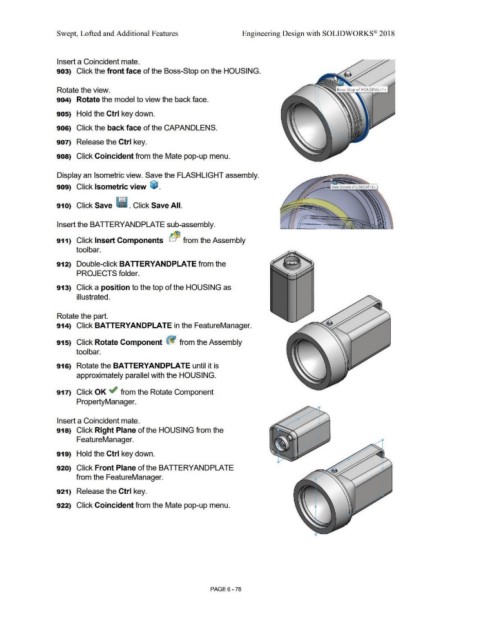
                                                Insert a Coincident mate.


                                                903)  Click the front face of the Boss-Stop on the HOUSING.


                                                Rotate the view.


                                                904)  Rotate the model to view the back face.


                                                905)  Hold the Ctrl key down.


                                                906)  Click the back face of the CAPANDLENS.


                                                907)  Release the Ctrl key.


                                                908)  Click Coincident from the Mate pop-up menu.


                                                Display an Isometric view. Save the FLASHLIGHT assembly.


                                                909)  Click Isometric view  ~ .


                                                910)  Click Save · ~;J. Click Save All.


                                                Insert the BA TIERYANDPLA TE sub-assembly.


                                                911)  Click Insert Components  b~ from the Assembly


                                                                tool  bar.


                                                912)  Double-click BA TTERYANDPLA TE from the


                                                                 PROJECTS folder.


                                                913)  Click a position to the top of the HOUSING as


                                                                 illustrated.


                                                Rotate the part.


                                                914)  Click BATTERYANDPLATE in the FeatureManager.


                                                915)  Click Rotate Component  ~ from the Assembly


                                                                tool  bar.


                                                916)  Rotate the BATTERYANDPLATE until it is


                                                                 approximately parallel with the HOUSING.


                                                917)  Click OK ~ from the Rotate Component


                                                                 PropertyManager.


                                                Insert a Coincident mate.


                                                918)  Click Right Plane of the HOUSING from the


                                                                 FeatureManager.


                                                919)  Hold the Ctrl key down.


                                                920)  Click Front Plane of the BA TIERYANDPLATE


                                                                from the FeatureManager.


                                                921)  Release the Ctrl key.


                                                922)  Click Coincident from the Mate pop-up menu.


                                                                                                                                                                                PAGE 6 - 78

