


Page 578 - Subyek Computer Aided Design - [David Planchard] Engineering Design with SOLIDWORKS
P. 578
Top-Down and Sheet Metal Parts Engineering Design with SOLIDWORKS® 2018
Part Template and Assembly Template
The parts and assemblies in this project require Templates created in Project 2 and
Project 3. The MY-TEMPLATES tab is located in the New dialog box. If your MY-
TEMPLATES folder contains the ASM-MM-ANSI and PART-MM-ANSI Templates,
skip the next few steps.
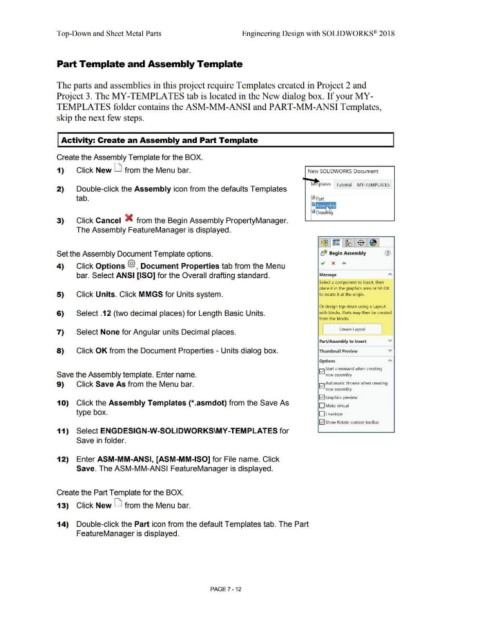
I Activity: Create an Assembly and Part Template
Create the Assembly Template for the BOX.
1) Click New D from the Menu bar. New SOLIDWORKS Document
Te plates Tutorial MY-TEMPLATES
2) Double-click the Assembly icon from the defaults Templates
tab.
3) Click Cancel X from the Begin Assembly PropertyManager.
The Assembly FeatureManager is displayed.
Set the Assembly Document Template options. b<$ Begin Assembly
~ x +
4) Click Options @, Document Properties tab from the Menu
bar. Select ANSI [ISO] for the Overall drafting standard. Message
Select a component to insert. then
place it in the graphics area or hit OK
5) Click Units. Click MMGS for Units system. to locate it at the origin.
Or design top-down using a Layout
6) Select .12 (two decimal places) for Length Basic Units. with blocks. Parts may then be created
from the blocks.
[ Create Layout 1
7) Select None for Angular units Decimal places.
Part/Assembly to lnser1 v
8) Click OK from the Document Properties - Units dialog box. Thumbnail Preview v
Options
E2] Start command when creating
Save the Assembly template. Enter name. new assembly
9) Click Save As from the Menu bar. E2] Automatic Browse when creating
new assembly
E2] Graphics preview
10) Click the Assembly Templates {*.asmdot) from the Save As
D Make virtual
type box. D Envelope
E2] Show Rotate context toolbar
11) Select ENGDESIGN-W-SOLIDWORKS\MY-TEMPLATES for
Save in folder.
12) Enter ASM-MM-ANSI, [ASM-MM-ISO] for File name. Click
Save. The ASM-MM-ANSI FeatureManager is displayed.
Create the Part Template for the BOX.
13) Click New D from the Menu bar.
14) Double-click the Part icon from the default Templates tab. The Part
FeatureManager is displayed.
PAGE? - 12

