


Page 596 - Subyek Computer Aided Design - [David Planchard] Engineering Design with SOLIDWORKS
P. 596
Top-Down and Sheet Metal Parts Engineering Design with SOLIDWORKS® 2018
Return to the BOX assembly.
161) Click Edit Component ~ from the Assembly toolbar. The
[Part#ABOX]<#> displayed in black.
Save the BOX assembly.
162) Click Savellj. Click Save All. Click OK to save internally.
Rename the default component [Part2ABOX]<1 > to POWERSUPPL Y.
163) Right-click [ Part#ABOX ]<1> ->. Click Open Part.
The [Part#ABOX ]<1 > -> FeatureManager is displayed.
164) Click Save As from the Menu bar. Enter POWERSUPPL Y in the >
File name box. Save in the VENDOR-COMPONENTS folder.
Click Save as. c!!fJ BOX (Default<Display State- 1 >)
~ ~ ] History
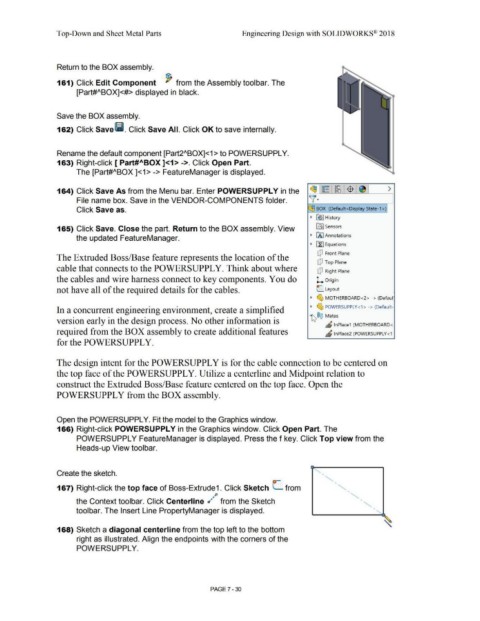
165) Click Save. Close the part. Return to the BOX assembly. View (fl] Sensors
the updated FeatureManager. ~ 00 Annotations
~ ll] Equations
(P Front Plane
The Extruded Boss/Base feature represents the location of the
(P Top Plane
cable that connects to the POWERSUPPL Y. Think about where [P Right Plane
the cables and wire harness connect to key components. You do l.. Origin
not have all of the required details for the cables. L Layout
~ ~ MOTHERBOARD<2> -> (Defaul'
In a concurrent engineering environment, create a simplified ~ ~ POWERSUPPLY<1 > -> (Default·
~ ®@ Mates
version early in the design process. No other information is
" lnPlace1 (MOTHERBOARD<
required from the BOX assembly to create additional features " lnPlace2 (POWERSUPPLY < 1
for the POWERSUPPLY.
The design intent for the POWERSUPPL Y is for the cable connection to be centered on
the top face of the POWERSUPPL Y. Utilize a centerline and Midpoint relation to
construct the Extruded Boss/Base feature centered on the top face. Open the
POWERSUPPLY from the BOX assembly.
Open the POWERSUPPL Y. Fit the model to the Graphics window.
166) Right-click POWERSUPPLY in the Graphics window. Click Open Part. The
POWERSUPPL Y FeatureManager is displayed. Press the f key. Click Top view from the
Heads-up View toolbar.
Create the sketch. '
o-
167) Right-click the top face of Boss-Extrude1. Click Sketch L from
~p
the Context toolbar. Click Centerline r1~ from the Sketch
toolbar. The Insert Line PropertyManager is displayed.
168) Sketch a diagonal centerline from the top left to the bottom
right as illustrated. Align the endpoints with the corners of the
POWERSUPPL Y.
PAGE? - 30

